
For Admins
Create a Push Message 📢
With a push message, you write your members a short message yourself that lands right on their phone, even when the Gumb app is closed. You choose who gets it: one person, one or more groups, everyone, or only those who haven't replied to an event yet. It's ideal for anything last-minute, without phone numbers and without a group chat. You send push messages in the web app.
What makes push messages in Gumb special?
- Written by you You decide what goes out, when, and to whom.
- Exactly the right people individuals, whole groups, or only everyone without a reply.
- Straight to the phone The message arrives even when the app is closed.
- One tap opens the event Whoever taps the message lands right on the event and replies at once.
- No numbers needed Nobody has to share a phone number, and no group chat overflows.
Push message or automatic notification?
Gumb sends automatic notifications on its own, for fixed occasions: a new invitation, a changed event, a reminder before the event. You set them up once. A push message is one you write yourself, exactly when it's needed: practice is canceled because of rain, the meeting point changes, or replies are still missing. The two work together. More: Automate Notifications 📳
How do I write a push message?
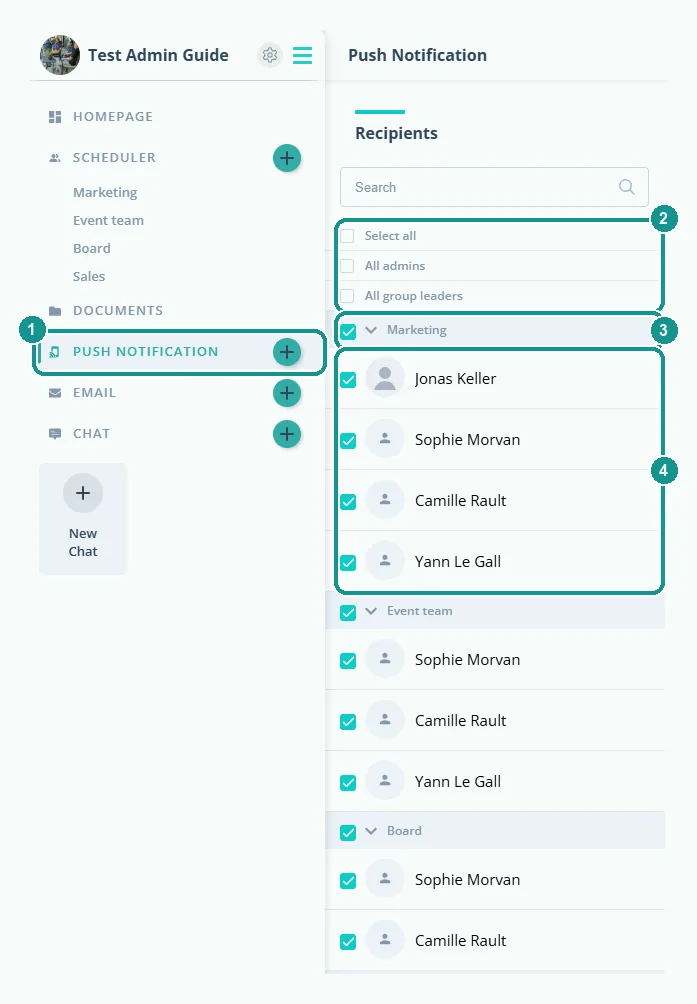
- Open the web app and click Push Notification (1) in the left sidebar.
- Under Recipients, choose who gets the message. At the very top, you select everyone, all admins, or all group leaders with one click (2). The checkbox next to a group name selects the whole group (3), and you check individual people directly (4).
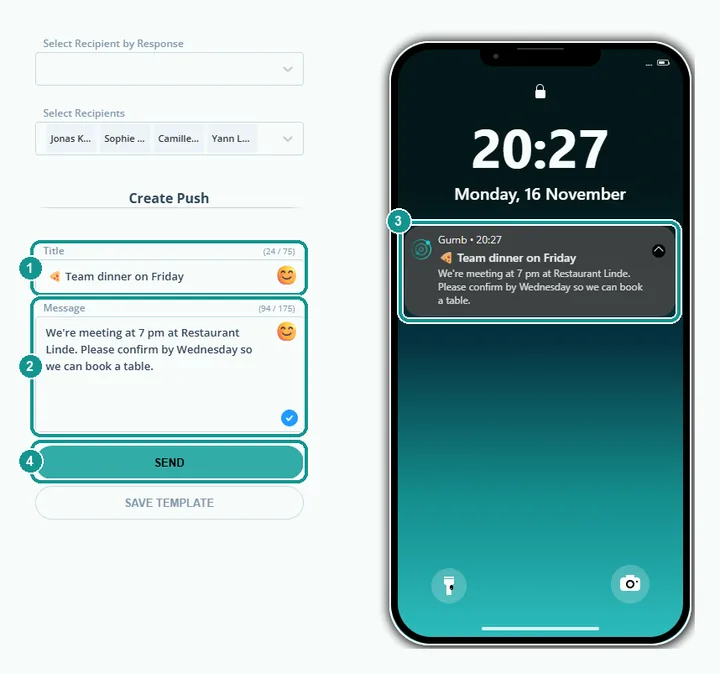
Then you write the message:
- Write a Title (1) of up to 75 characters and the Message (2) of up to 175 characters. The smiley adds emojis.
- On the right, you see live how the message appears on the lock screen (3).
- Click Send (4).
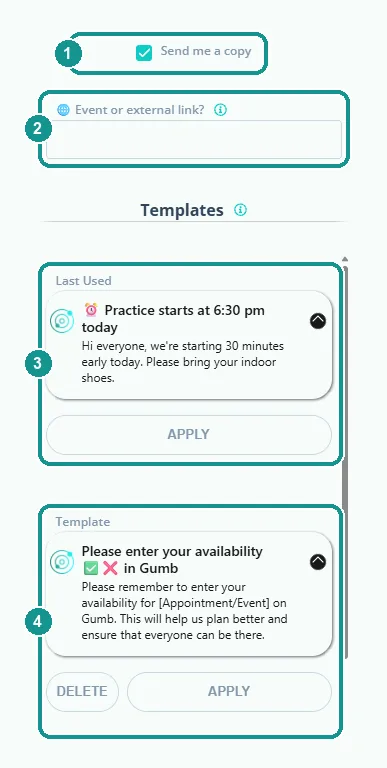
Leave Send me a copy at the top right turned on if you want a copy yourself.
How do I remind everyone who hasn't replied yet?
- At the top, under Select event (optional), pick the event (1). Gumb uses its name as the title, adds the link to the event, and selects everyone invited.
- Under Select Recipient by Response, leave only Awaiting (2). Now only the people who haven't replied yet are selected (3).
- Write your message or apply a template (4).
- Click Send (5).
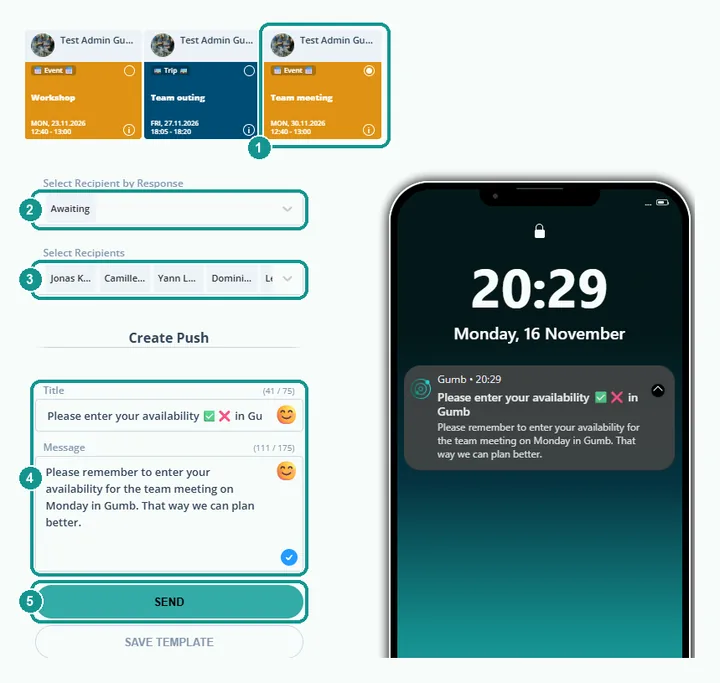
Whoever taps the message lands right on the event and replies in seconds. The same way, you send last details about the meeting point only to those who said yes, or a quick follow-up only to those who said no.
Can I include a link?
Yes. Enter any address starting with https:// in the Event or external link? field (2), for example the sign-up for an event or a report. Whoever taps the push message lands on that page.
How do templates work?
Under Templates, you save messages you need again and again, for example a reminder or a cancellation.
- Save Template below the Send button saves the title and message.
- Last Used (3) shows your last push message. With Apply, you send it again, for example to a different group.
- Apply on a template (4) fills in the title and message. You can adjust the text before sending. Delete removes the template.
You can save up to 8 templates. Gumb already includes three suggestions.
What happens when I send?
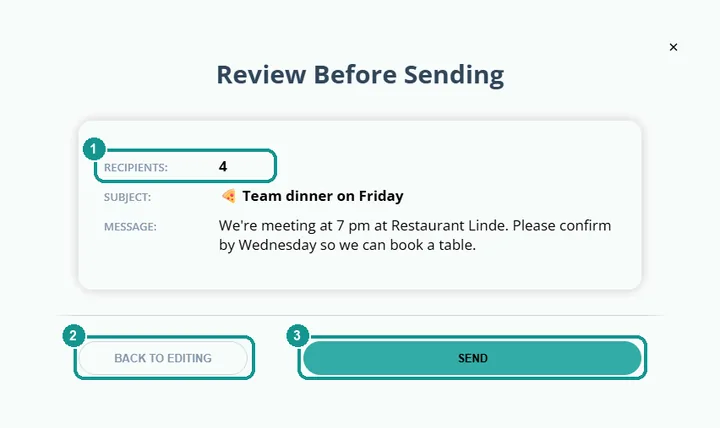
Gumb first shows you Review Before Sending with the number of recipients (1), the title, and the message. With Back to editing (2), you can still change something, and with Send (3), the message goes out.
Why doesn't a push message arrive?
A push message reaches all selected recipients who have the Gumb app on their phone, are signed in there, and allow notifications for Gumb. Anyone who has turned off push notifications in their profile doesn't get any. More: Notifications 🔔
Often the message did arrive and was swiped away. Since it isn't saved, it can't be opened again. So send anything important with the Email Feature 📧 as well. It also reaches members without the app.
Push message or email: which fits when?
A push message is short and arrives instantly: ideal for reminders, last-minute changes, and anything someone should react to right away. It only appears as a notification on the phone and isn't saved in Gumb. Anyone who swipes it away can't find it later. For anything important that people need to look up again, use the Email Feature 📧. It also works well for longer info with formatting and attachments, or for members without the app.
Who can send push messages?
Owners, admins, and group leaders. Members without one of these roles can't send push messages. More: Roles and permissions 🛂