
For Admins
Scheduling in Gumb 🗓️
The Scheduler is the heart of Gumb. This is where you plan every event in your community, from team meetings and shifts to rehearsals and training, and see at a glance who's coming. This guide covers the basics first, then everything else the Scheduler can do.
How do I create an event?
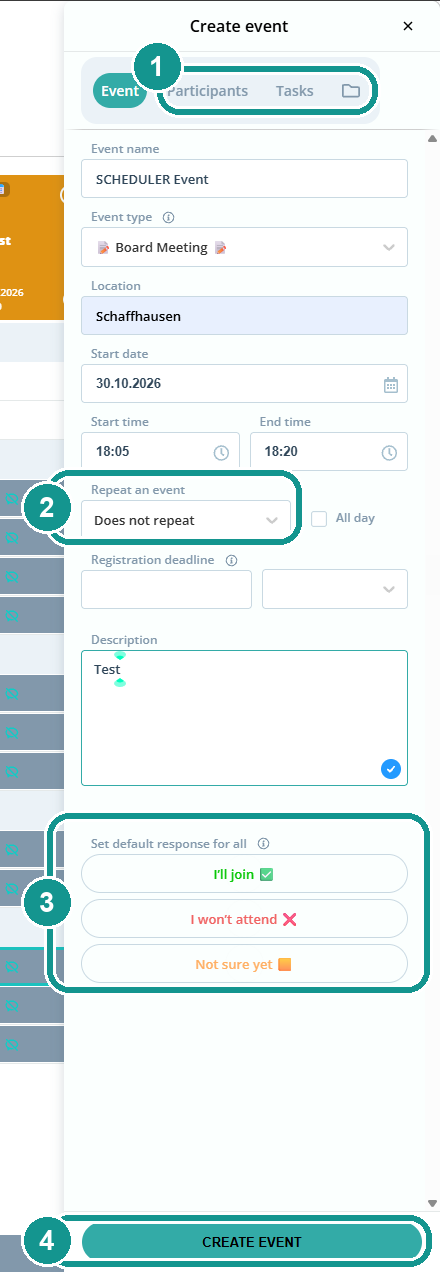
In the Scheduler, click the calendar icon at the bottom right or ➕ next to Scheduler on the left, then choose Create event. A panel opens on the right.
- Enter the event name, event type, location, date and time.
- At the top you'll find the Participants and Tasks tabs and the folder icon for files (1). More on these below.
- Under Repeat an event (2), choose whether the event happens once or repeats.
- With Set default response for all (3), you can set a response for all invitees in advance, e.g. "I'll join". This is optional.
- Click Create event at the bottom (4).
How do I create recurring events?
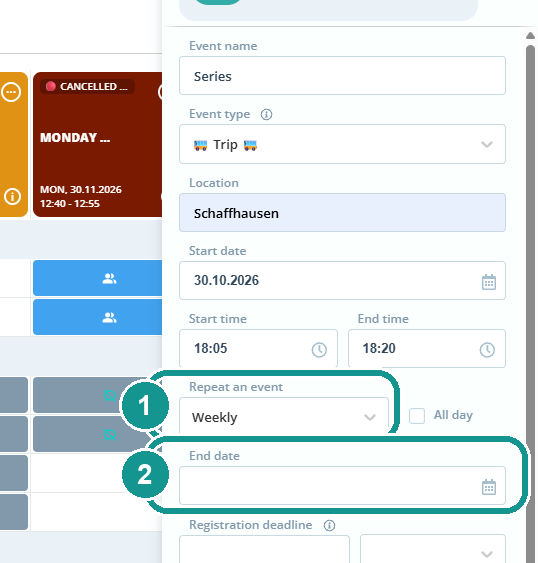
Under Repeat an event (1), pick the rhythm: daily, weekly, monthly or custom. Under End date (2), set when the series ends. That way you create the weekly team meeting or training once for the whole season.
Who do I invite to an event?
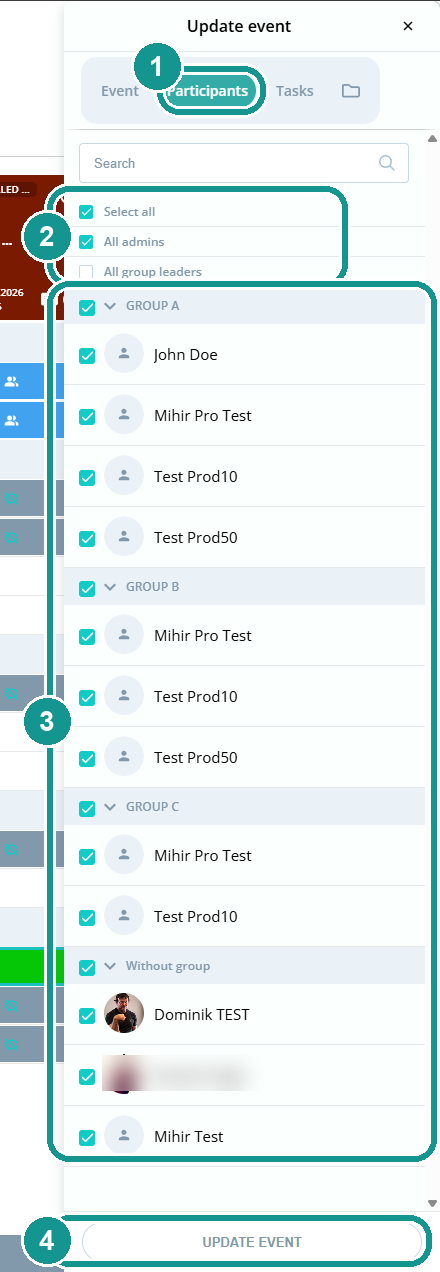
By default, all members are invited. You change this in the Participants tab (1). Select all, All admins or All group leaders (2) select several people at once. Below that, check or uncheck whole groups or individual people (3). Then click Create event or Update event at the bottom (4).
What do the colored, gray and white cells in the Scheduler mean?
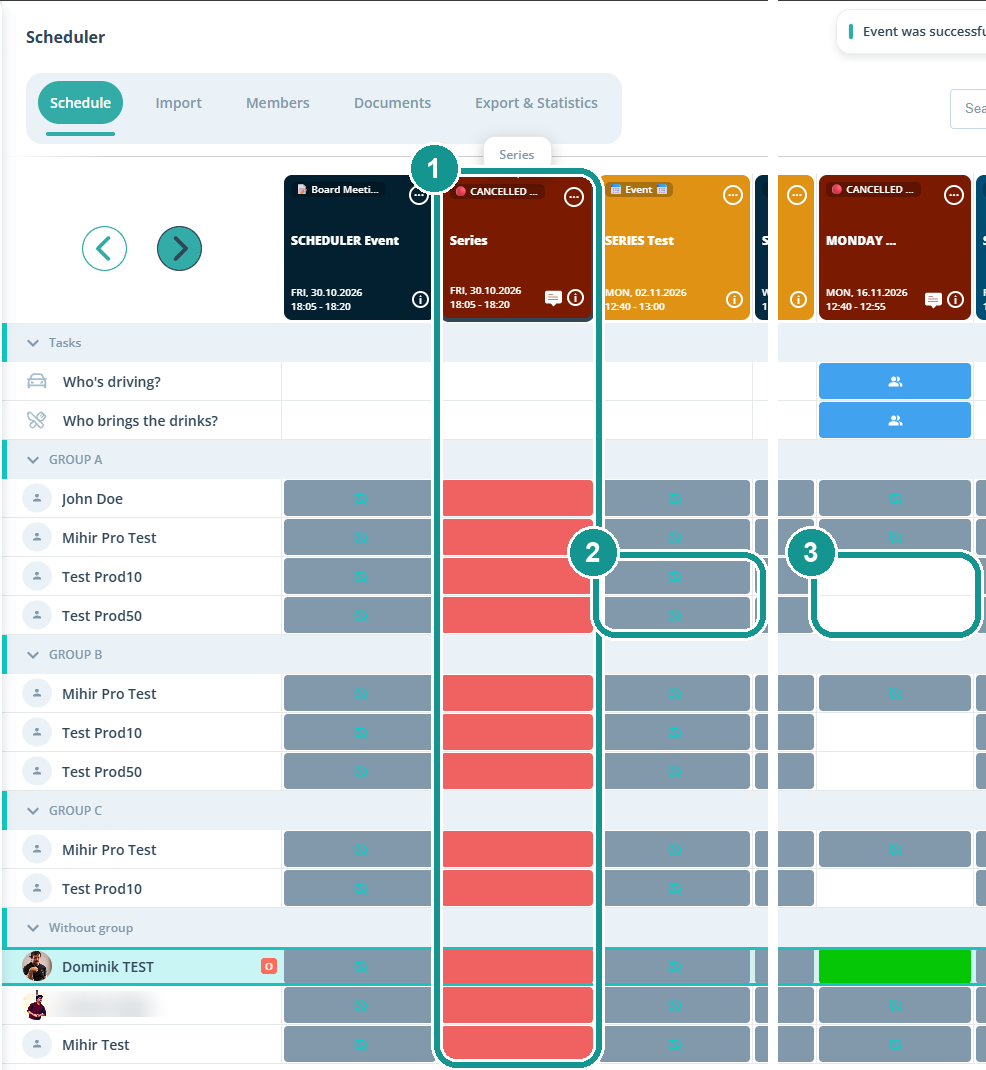
- Red column (1): a cancelled event, see below.
- Gray (2): the person is invited and sees the event. A gray cell with an icon means "Awaiting": they haven't responded yet.
- White (3): the person isn't invited and doesn't see the event.
You can change this at any time in the event's Participants tab.
How do I add tasks to an event?
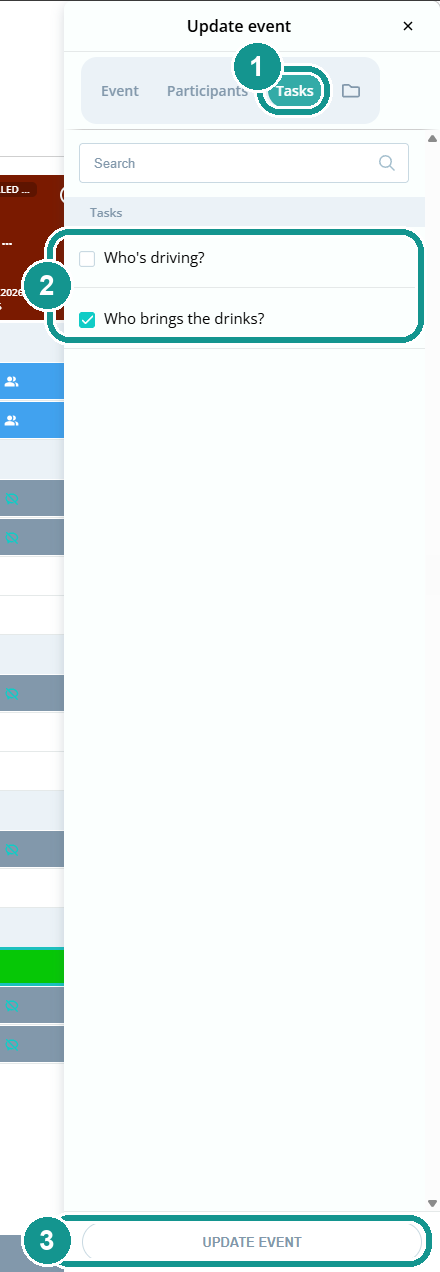
Tasks like "Who's driving?" or "Who brings the drinks?" start out turned off for each event. Open the Tasks tab (1), check the tasks this event needs (2) and click Update event at the bottom (3). Active tasks show up in blue in the Scheduler. You create the tasks themselves once in the settings: Create Tasks 📋
How do I attach files to an event?
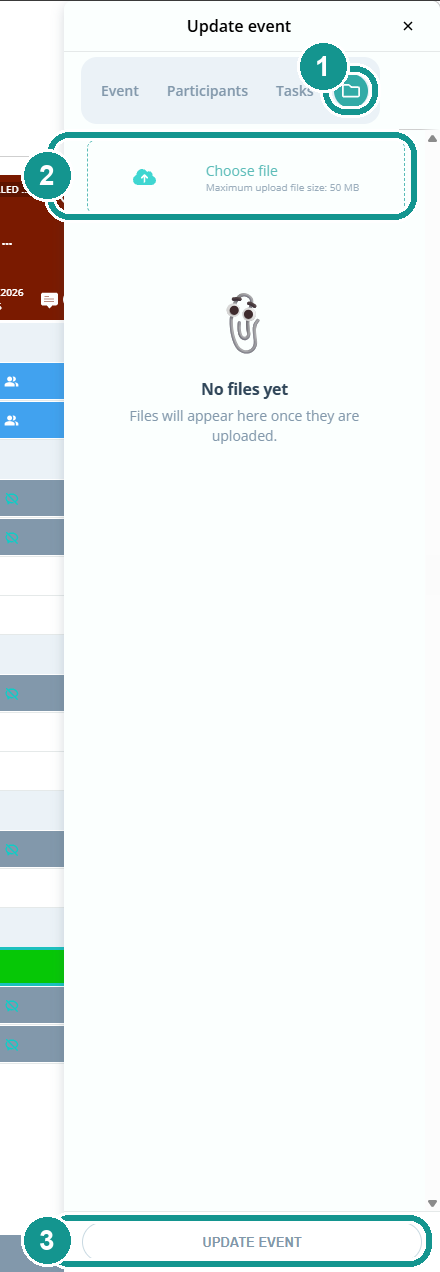
Click the folder icon (1), then Choose file (2). Each file can be up to 50 MB. Then click Update event at the bottom (3). Files for everyone go under Documents on the left: Store Files & Documents 📂
How do I create an event for one group only?
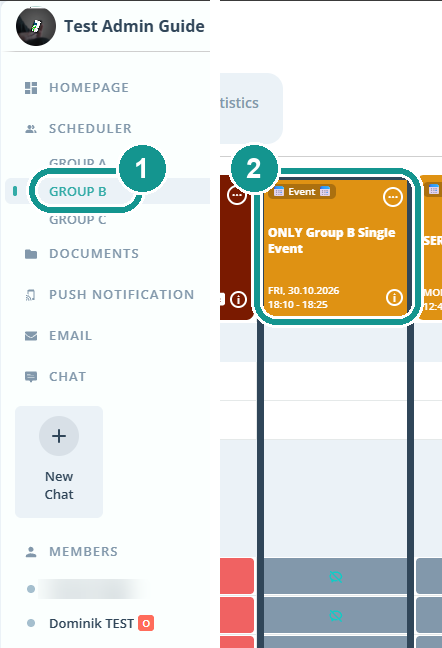
Click the group on the left (1). You're now in the group scheduler. Only the members of this group see the events you create here (2). If you invite just one group in the main Scheduler, the event also appears in that group's scheduler.
How do I edit an event?
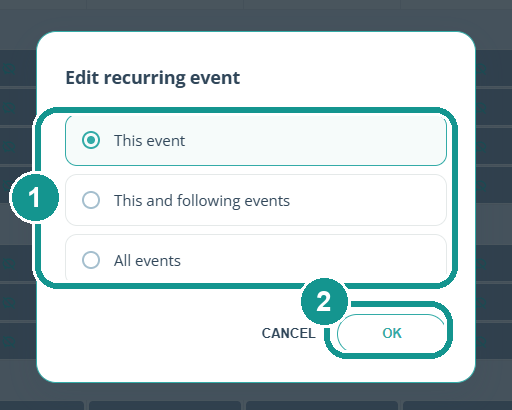
Click the event in the Scheduler, then Edit at the bottom right. If the event belongs to a series, Gumb asks when you save: This event, This and following events or All events (1). Pick one and click OK (2).
How do I let everyone know about a change?
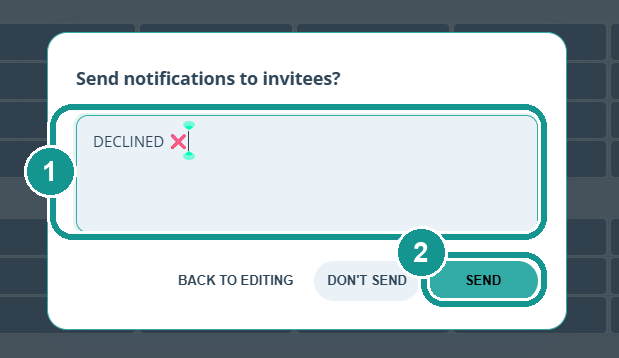
When you save, Gumb asks: Send notifications to invitees? Write a short message (1), e.g. "Cancelled!", and click Send (2). The message goes to everyone invited to the event, depending on your community's notification settings. It then stays visible on the event. We recommend this for every important change.
Should I cancel or delete an event?
Cancel it. A deleted event simply disappears, and anyone who missed the push message might still show up. A cancelled event stays visible.
- Create an event type "Cancelled" in red once: Create Event Types 🎫
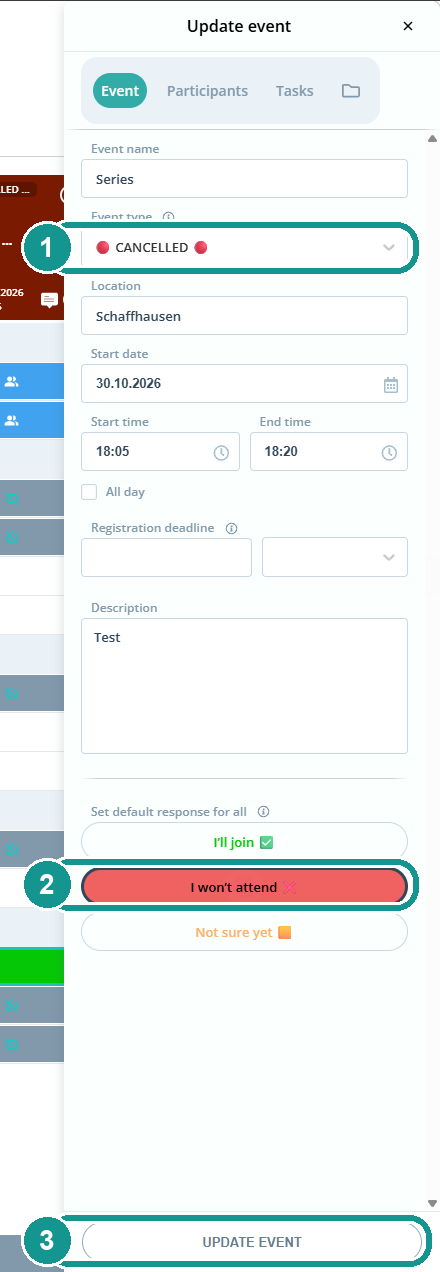
- Open the event, click Edit and choose "Cancelled" as the Event type (1).
- Optional: set Set default response for all to "I won't attend" (2). All responses turn red at once.
- Click Update event at the bottom (3) and send a message along with it.
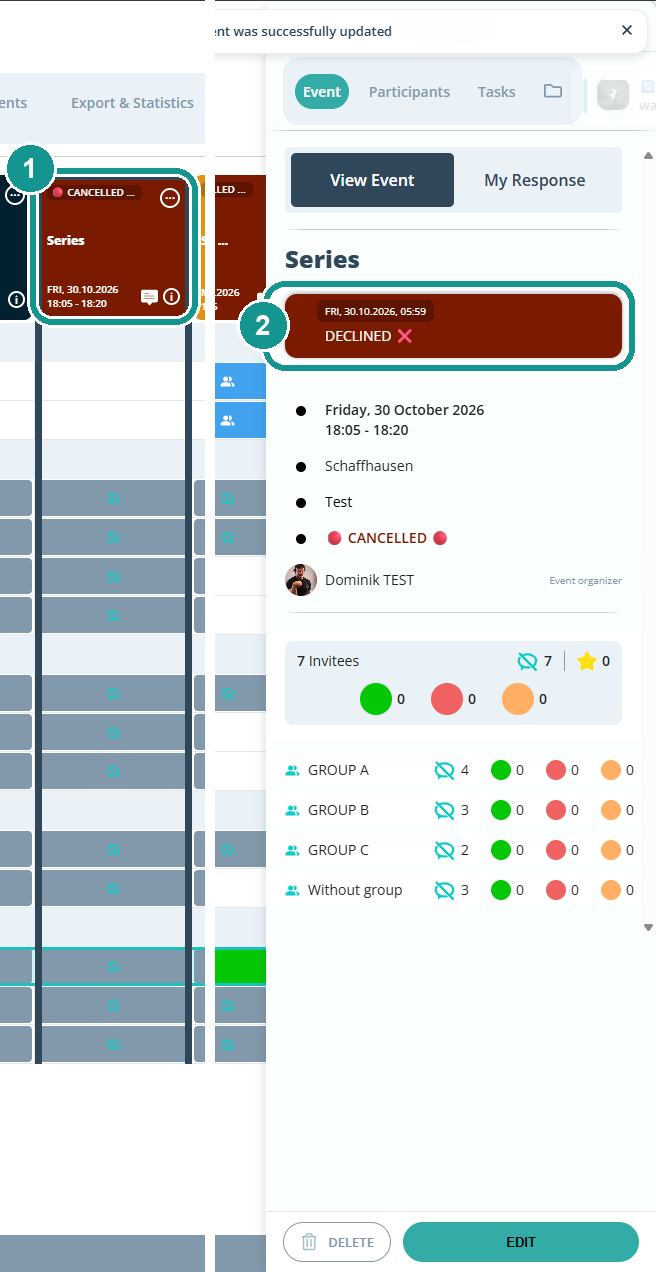
The event now shows up red in the Scheduler, with a speech bubble for the message (1). In the details, the message appears in the red box (2).
How do I respond for a member?
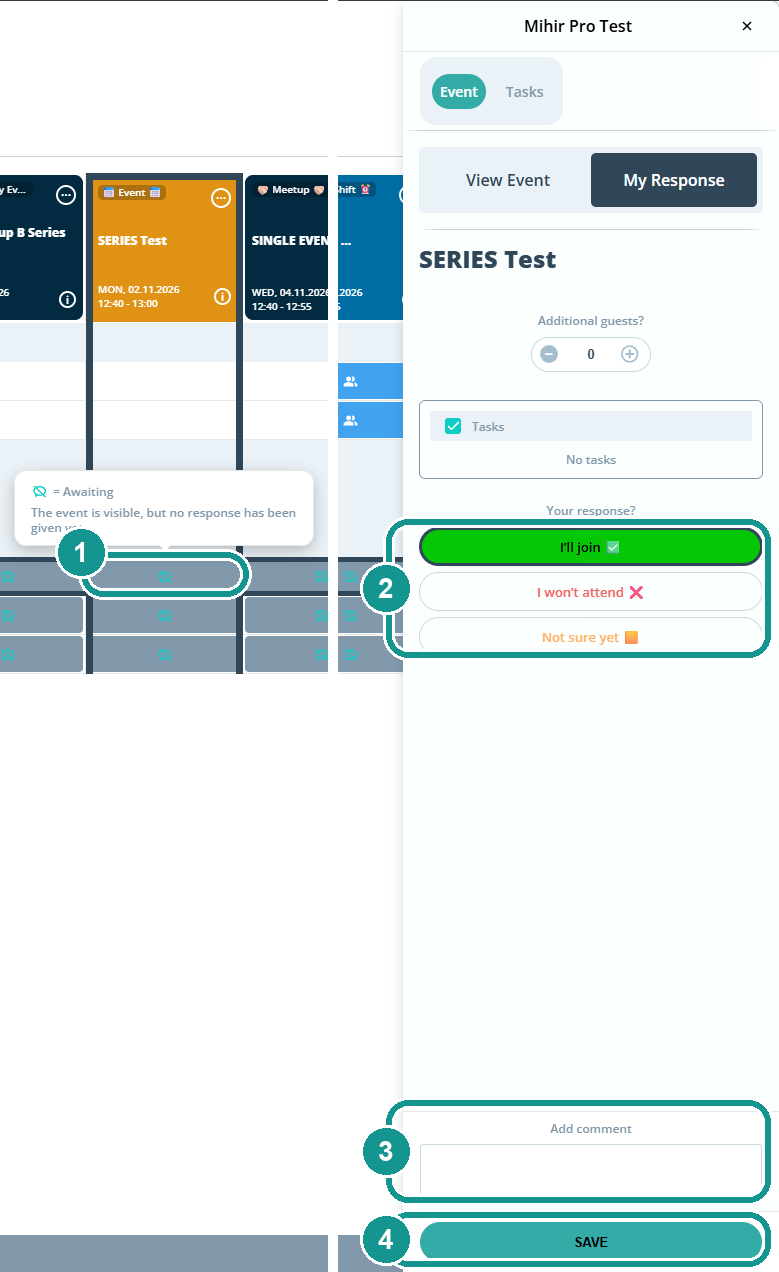
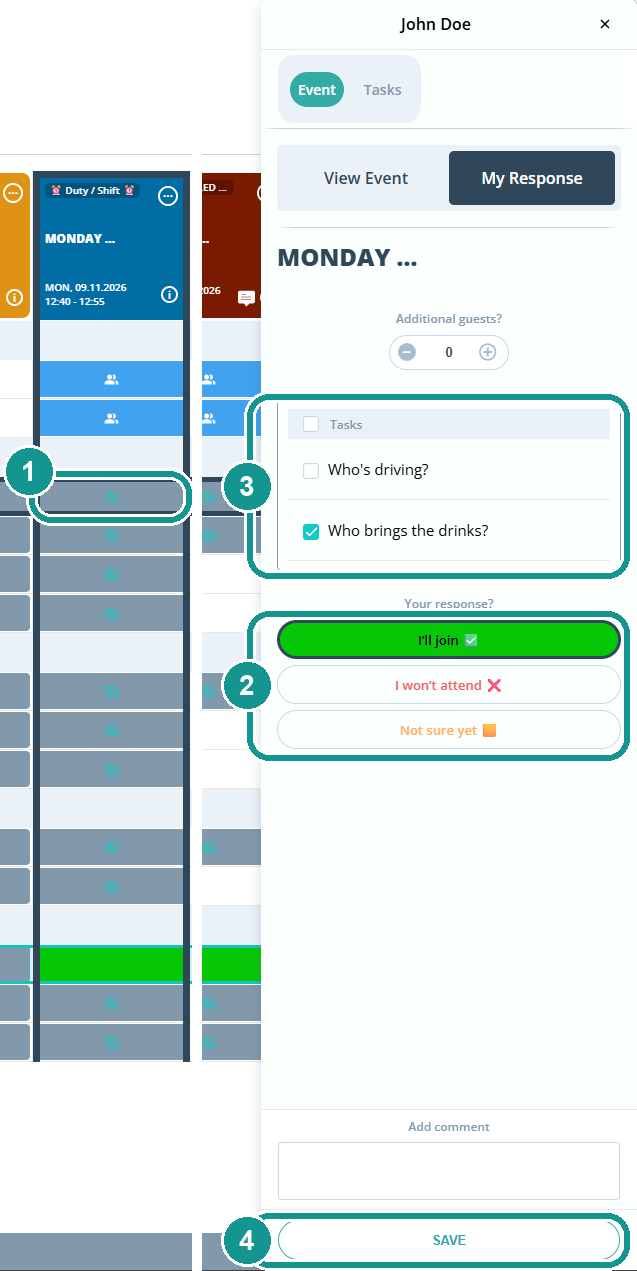
As an admin, you can respond for anyone, e.g. if someone cancelled by phone. In the Scheduler, click the response cell in their row (1). A gray cell means "Awaiting": the event is visible, but there's no response yet. A panel with their name opens on the right, on the My Response tab. Pick the response (2), add guests if needed, and optionally write a comment (3). The comment shows on the event, whether the person writes it or you do. Then click Save at the bottom (4).
If the event belongs to a series, Gumb asks whether your response applies to this event, this and following events, or all events.
How do I assign a task to a member?
- Click the response cell in the person's row (1).
- Pick a response first (2). It doesn't work without one.
- Check the task under Tasks (3).
- Click Save at the bottom (4).
The person sees the check mark right away under My Appointments, in the app and on the web, so they know the task is theirs.
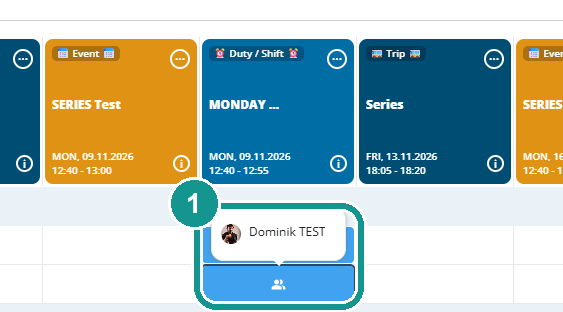
Hover over a blue task cell (1) to see who took on the task.
Who sees which events?
- Owners and admins see and manage all events, even ones they aren't invited to.
- Group leaders and members only see the events they're invited to.
More: Roles & Permissions 🛂
What else the Scheduler can do
Can I edit past events?
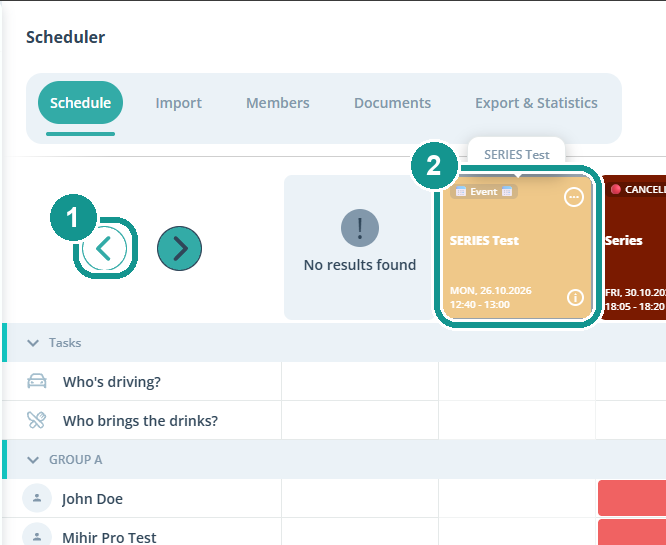
Yes. Click the left arrow in the Scheduler (1). Past events appear faded (2) and you can still edit them, e.g. to add responses for the statistics.
How do I find specific events?
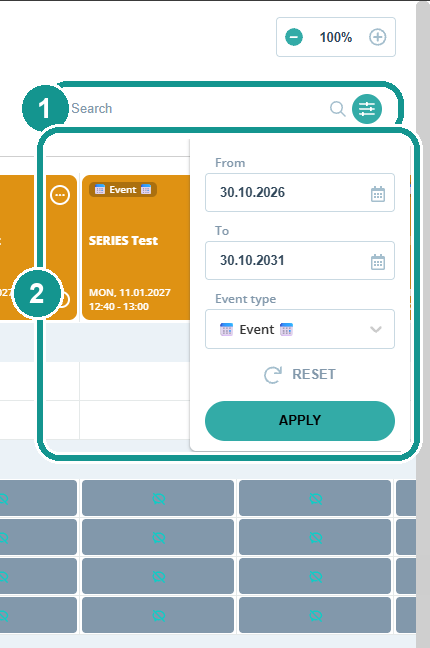
Use the Search field at the top right and the filter icon next to it (1). In the filter, pick From, To and the Event type (2) and click Apply. Reset shows all events again. Use - and + at the top right to zoom the Scheduler out or in.
How do I share or print an event?
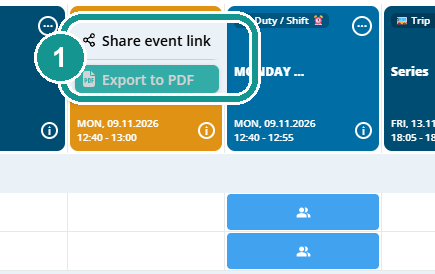
Click the three dots at the top right of the event card. In the menu (1), choose Share event link or Export to PDF.
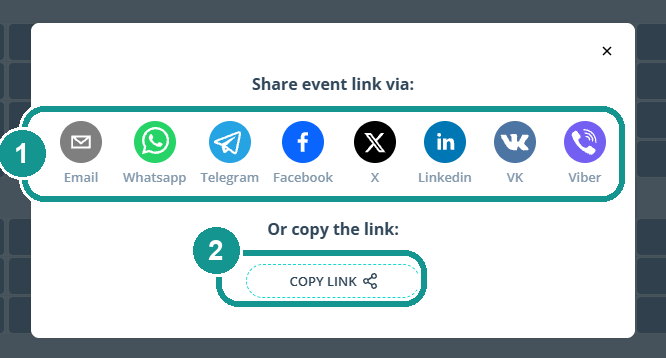
Share the link by email, WhatsApp, Telegram, Facebook, X, LinkedIn, VK or Viber (1), or copy it with Copy link (2).
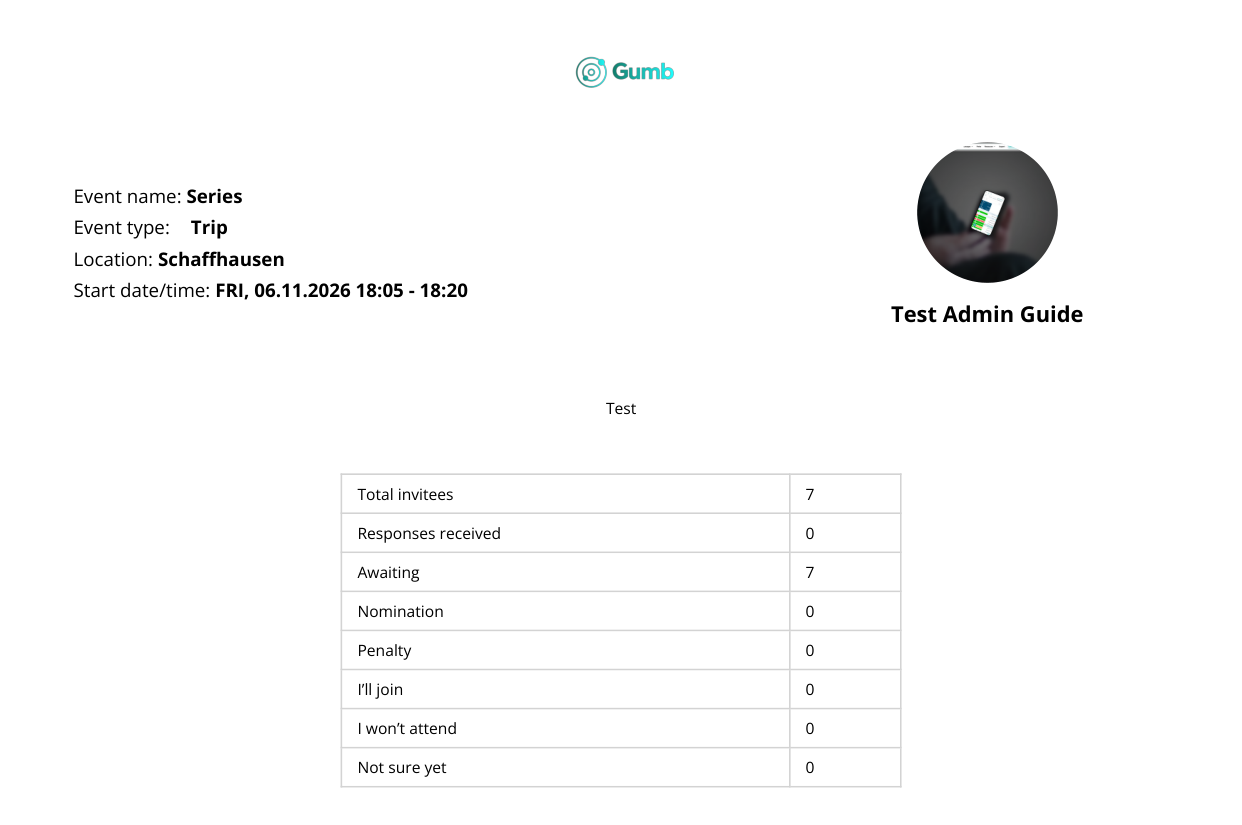
The PDF shows the event, a summary and the invitees per group, ready to print or post.
How do I see how many people are coming?
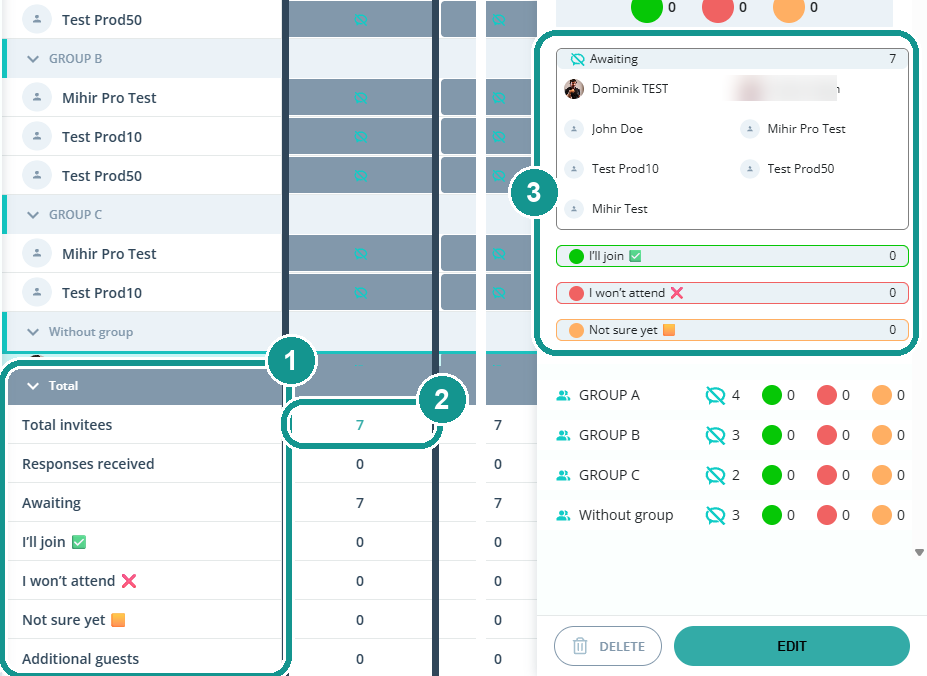
Expand the Total row at the bottom of the Scheduler (1). For each event, you see total invitees, responses received, awaiting, each response option and additional guests. Click a number (2) to open the statistics on the right, with names per response and group (3).
What else is there?
- All day: check it when creating an event, and it needs no time.
- Registration deadline: set until when members can respond.
- Additional guests: members sign up companions right away.
- Custom event types with colors: Create Event Types 🎫
- Custom response options: Response Options 🟢🟡🔴
- Import many events at once: Import Events ⬆️
- Statistics and exports in the Export & Statistics tab: Statistics & Exports 📊
- Calendar sync: Google Calendar Connection 📚, Apple Calendar (iCal) Connection 🍏, Outlook Connection 📅