
For Admins
Groups & Communities 👥
You can set up Gumb as one community with several groups, as several separate communities, or both. A company with several departments, an organization with project teams, or a club with youth and adult teams often needs a different setup. It's best to think about this at the start: if each department or team needs its own event types, colors or reminders, start with several communities right away. You can still change it later and add more communities at any time.
Group or separate community?
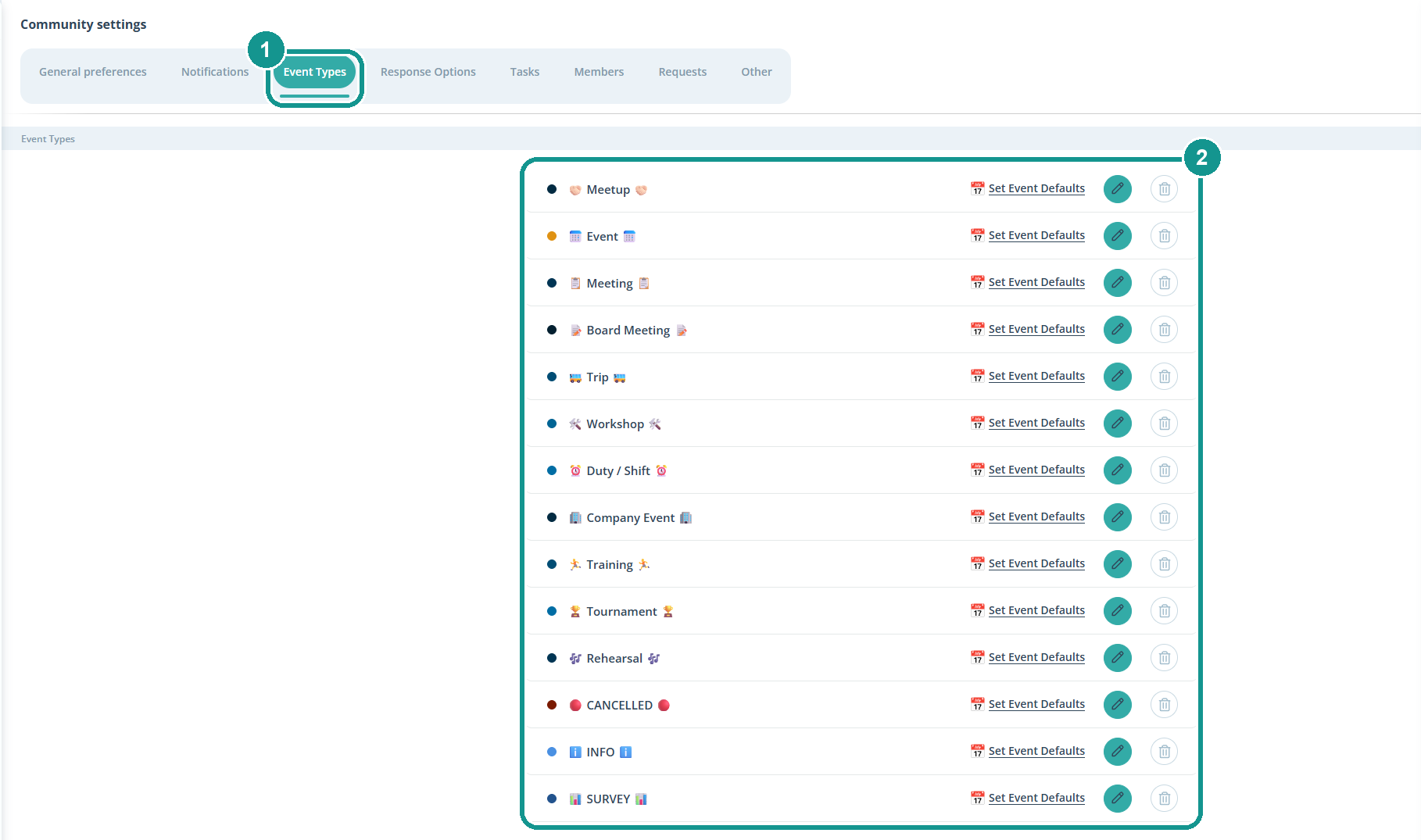
- Groups in one community: You set event types, response options, tasks and notifications once, and they apply to all groups. Each group has its own scheduler and a group leader. Only a group's members see its events. Admins see all groups at a glance.
- Separate communities: Each one has its own settings: its own event types and colors, response options and event reminders. That way each lead sets up their community the way they work.
Rule of thumb: If everyone follows the same processes, groups are enough. If each lead wants their own rules, use separate communities.
Which plan fits your setup?
Pro includes one community with a shared main scheduler, up to 100 members and up to 20 group schedulers. That's enough for many smaller companies, organizations and clubs: you work with shared settings and split teams or departments into groups.
Premium is for companies with several departments or locations and for clubs with several teams that each need their own settings. Premium comes with 2 to 30 communities. Each one has its own main scheduler, and every community adds 100 members and 20 group schedulers.
Every plan includes every feature. You'll find the prices on the pricing page.
Can someone be an admin in several communities?
Yes. A person can be an admin in as many communities as you like and then has access to all of them. In a company, for example, management is admin in every community, while each department lead only manages their own. The owner has access everywhere anyway.
What do members in several groups or communities see?
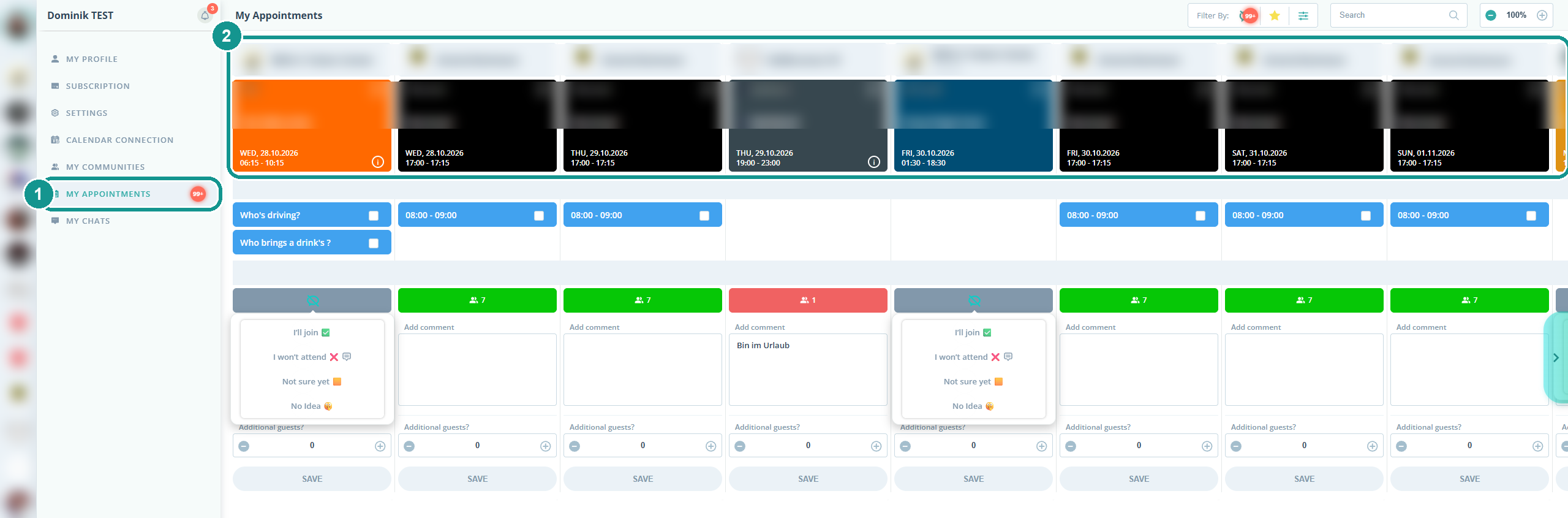
All events in one place. A member can be in several groups and communities. Under My Appointments (1) they see all events in chronological order, no matter which group or community they come from (2). In the iOS and Android app, My Appointments is the home screen. Clicking an event opens the scheduler of that community.
How to create a group
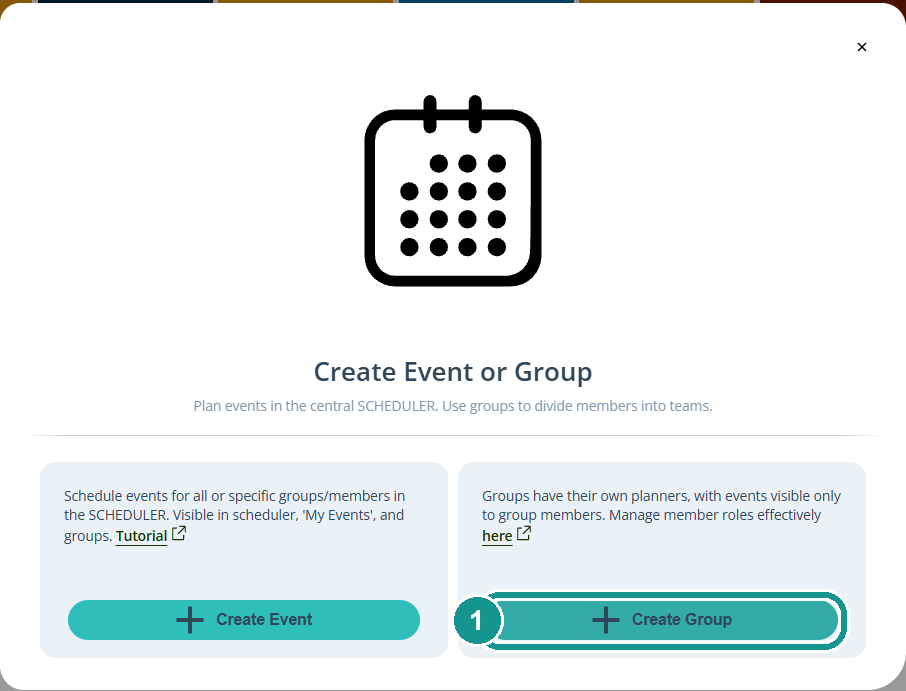
Step 1: In the Scheduler, click ➕ and then Create Group (1).
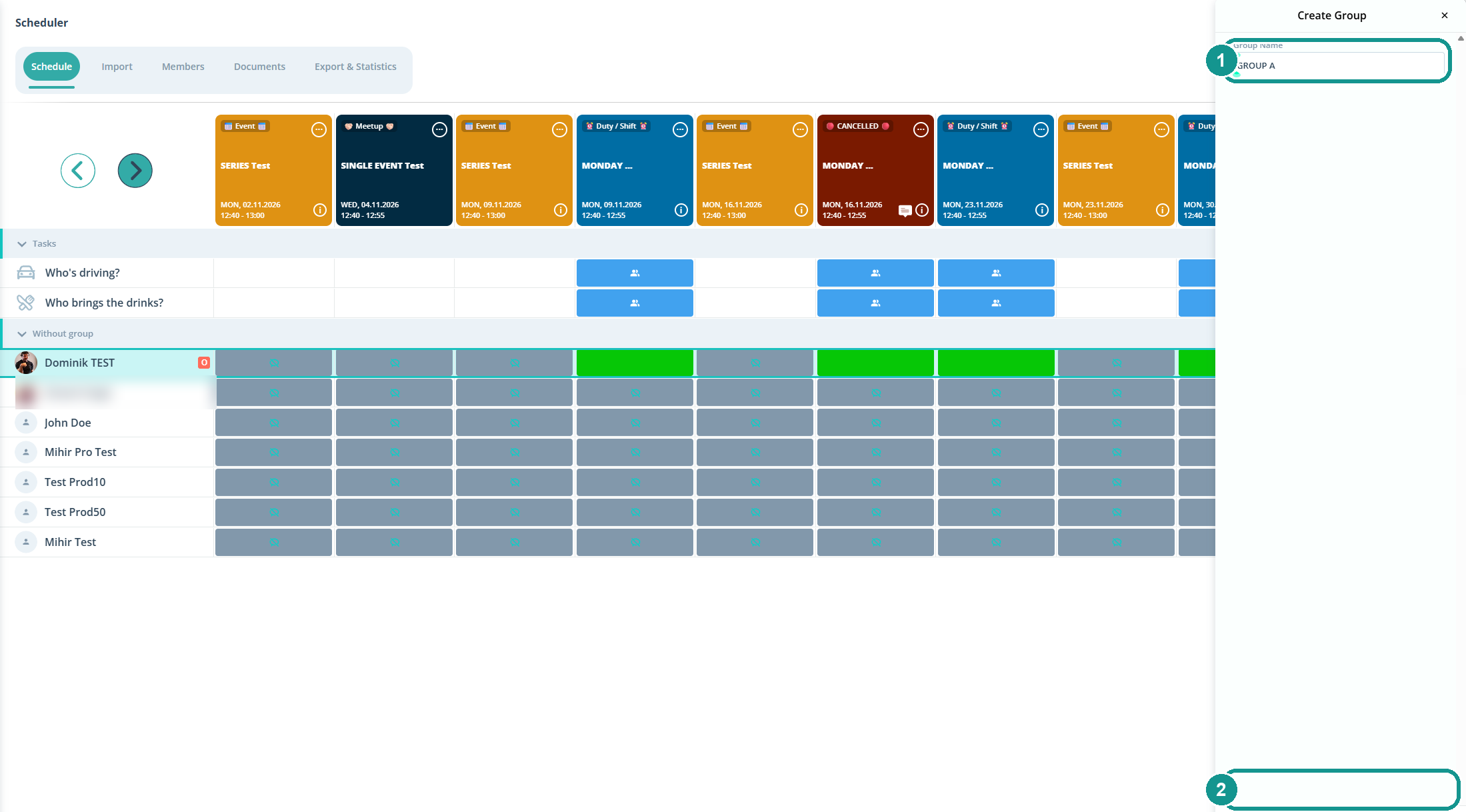
Step 2: Enter the Group Name (1) and click Create (2).
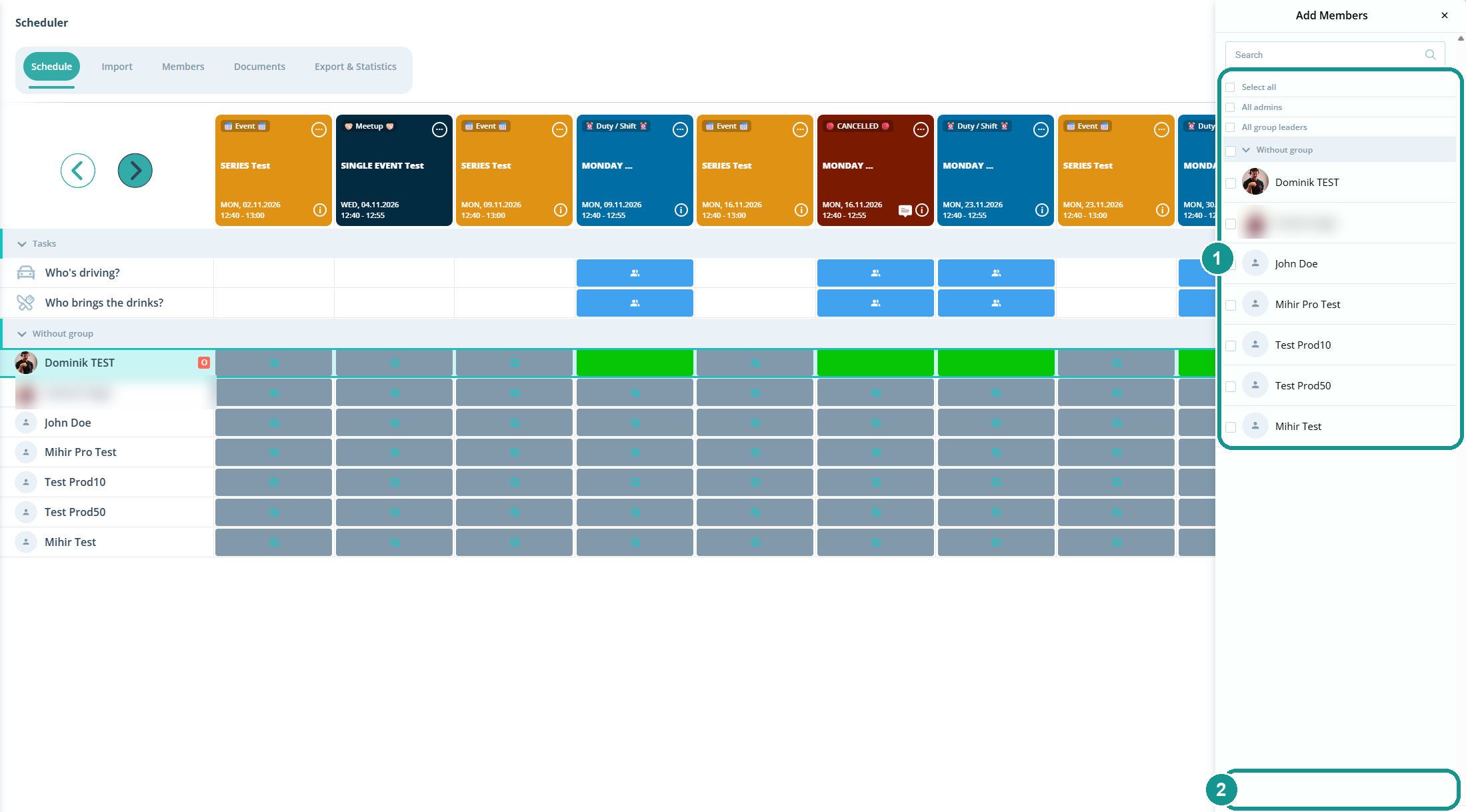
Step 3: Select the group's members (1) and click Add Members (2).
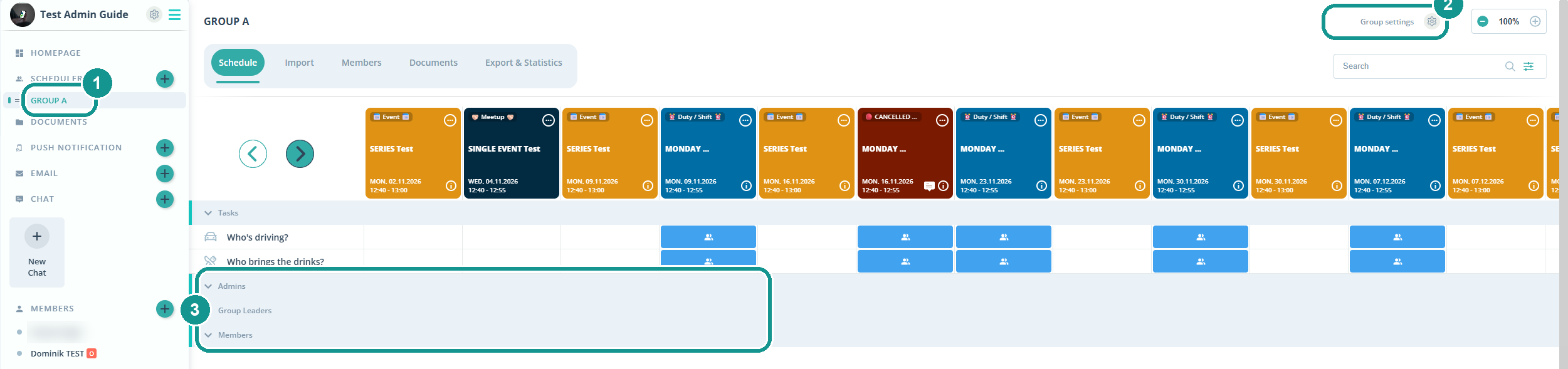
The group appears on the left under the Scheduler (1). In Group settings (2) you rename or delete the group. The group scheduler shows admins, group leaders and members (3). Only the members of this group see the events you create here.
How do I add members to a group later?
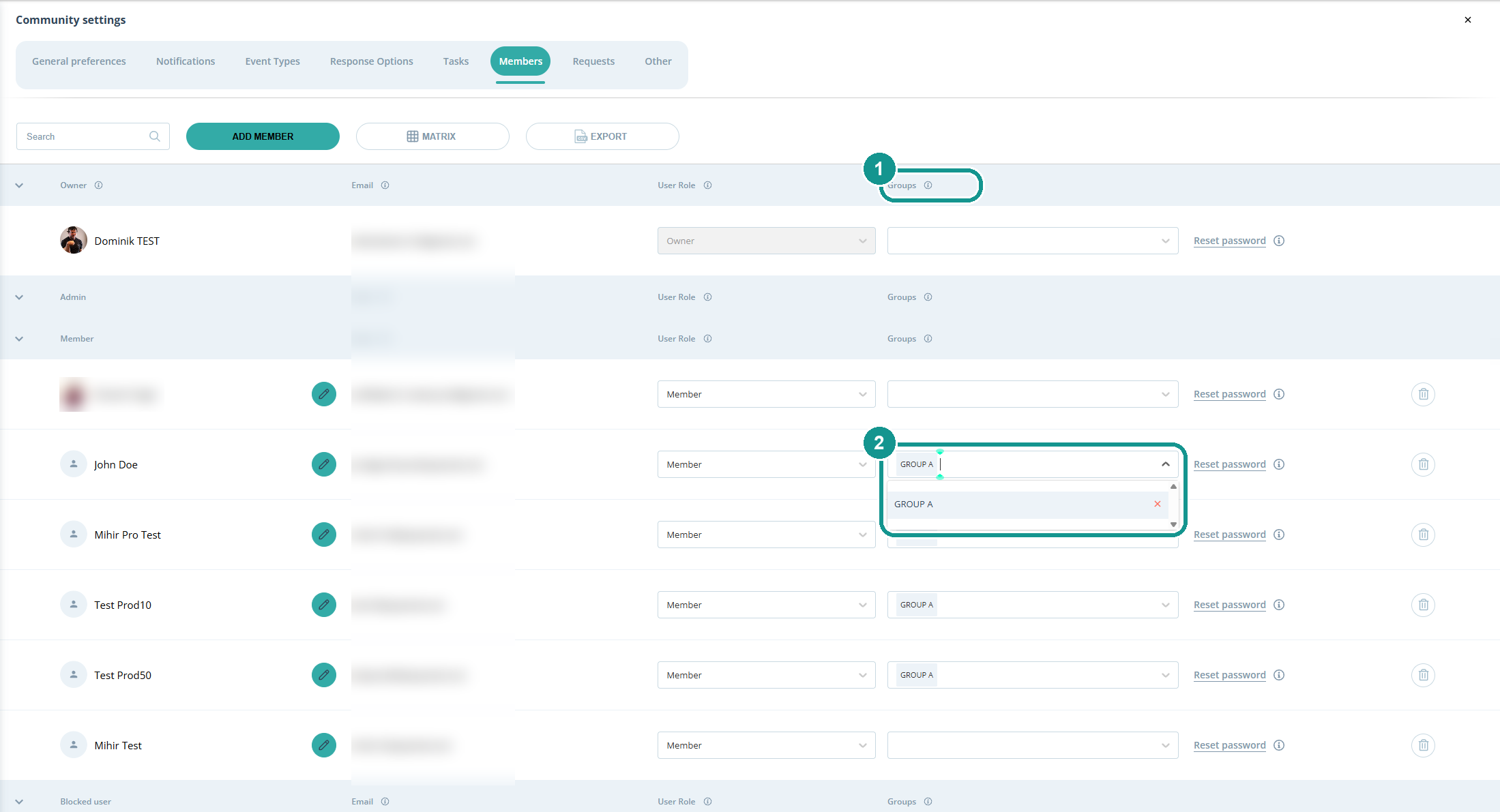
Any time in member administration: click the gear ⚙️ and open the Members tab. In the Groups column (1), pick the group next to the person or remove it with x (2). A person can be in several groups. This also works for new members right when you add them.
How do I move members between communities?
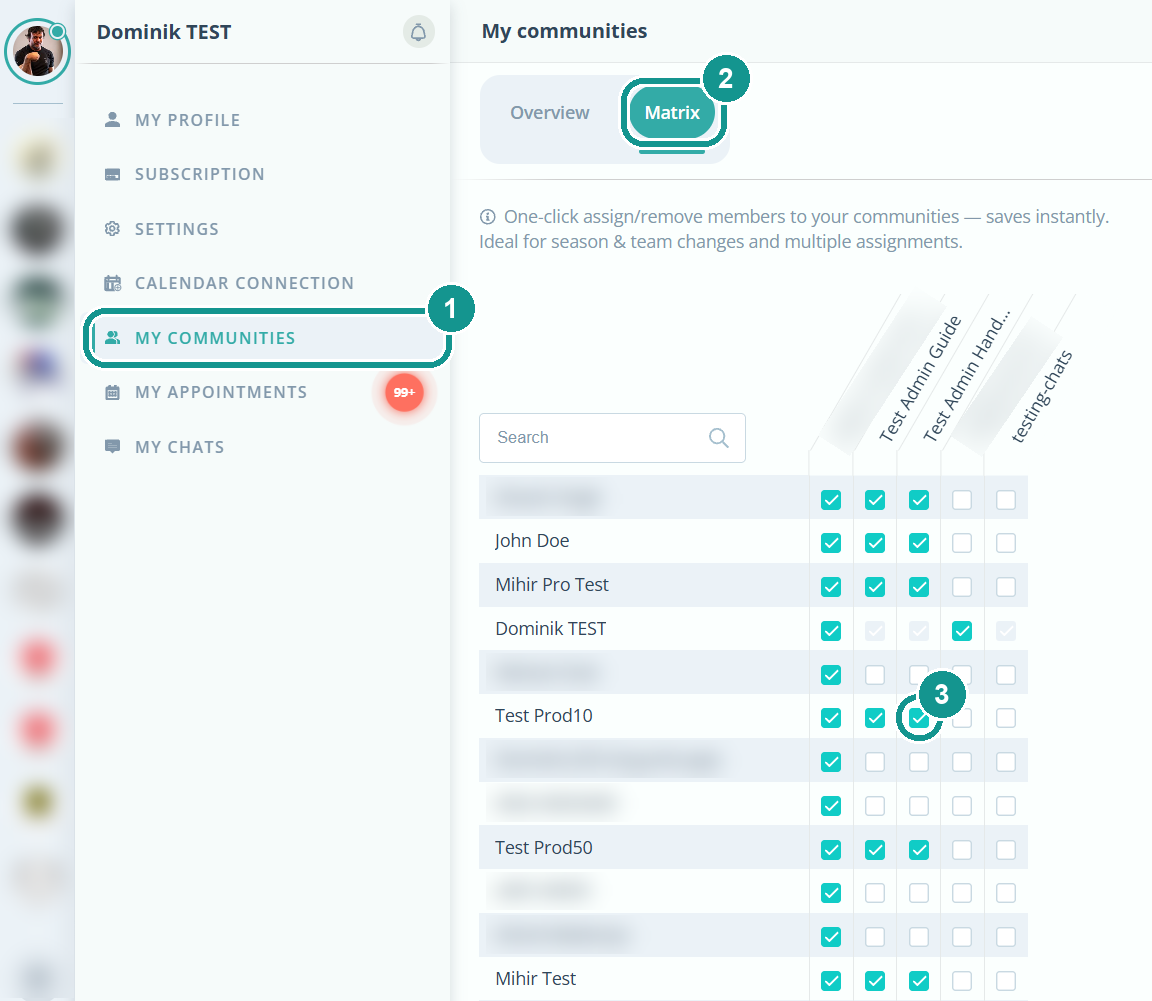
With the member matrix: under My communities > Matrix, check a box per person and community. Gumb saves every change right away. More: Member Matrix 👤🔀
How do I create another community?
Click ➕ at the far left of the sidebar and enter a name and category. The Admin Guide 🚩 shows the steps. Pro includes one community, for more you switch to Premium: Which Plan Fits? 💼