
For Admins
Customize Your Home Page ✏️
Your homepage shows your members your cover, logo, a description and your most important links. You edit it with the gear ⚙️ next to your community's name, in the General preferences tab. Be sure to upload a logo and a cover: your logo appears in every phone notification and every email from Gumb.
How to customize your homepage
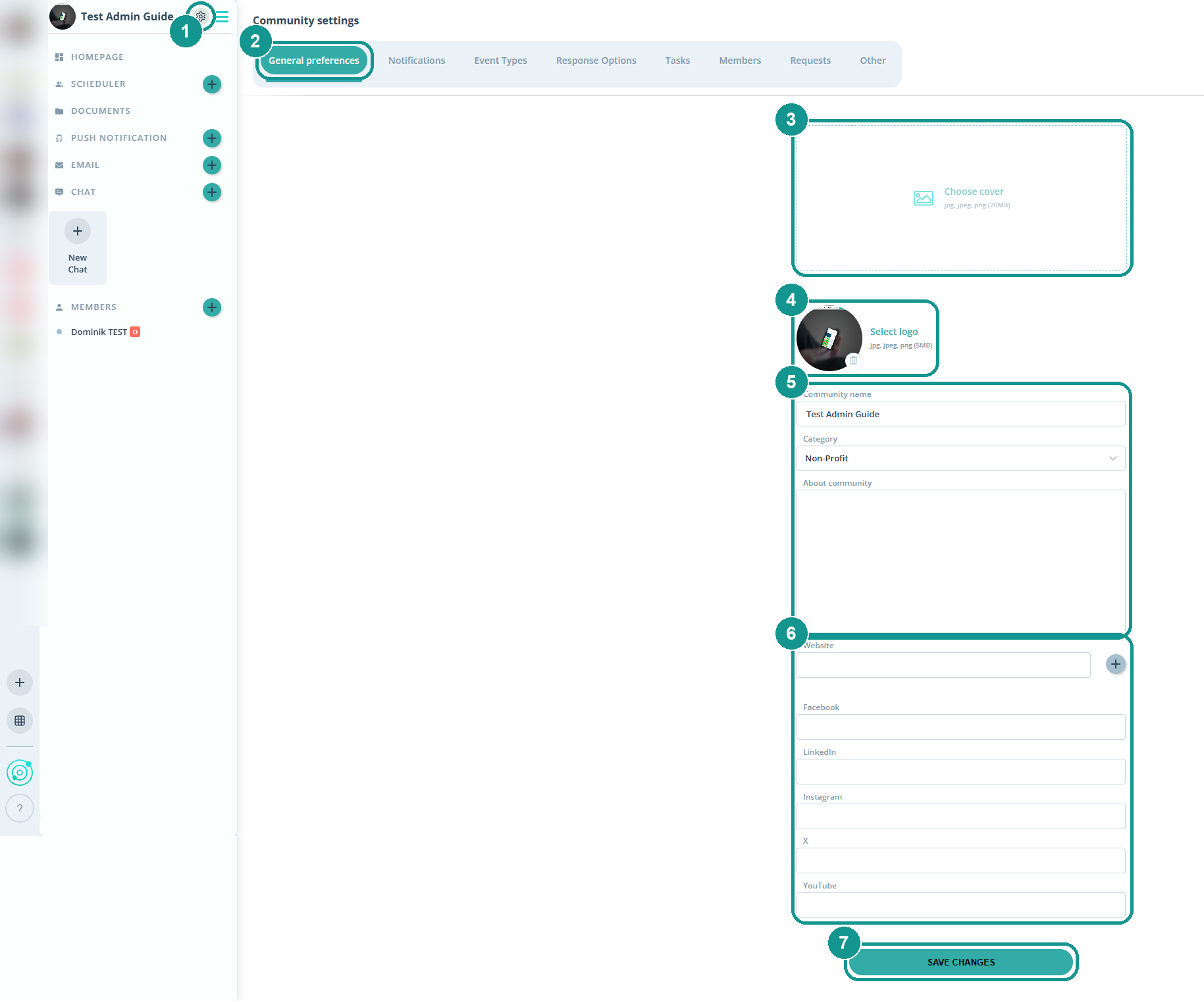
- Click the gear ⚙️ (1) next to your community's name.
- Open the General preferences tab (2).
- Click Choose cover (3) and Select logo (4), then upload an image for each (jpg, jpeg or png).
- Fill in the name, category and About community (5): who you are and what new members need to know.
- Add your website and your Facebook, LinkedIn, Instagram, X and YouTube channels (6). Use ➕ to add another website.
- Click Save changes (7).
Why do the logo and cover matter so much?
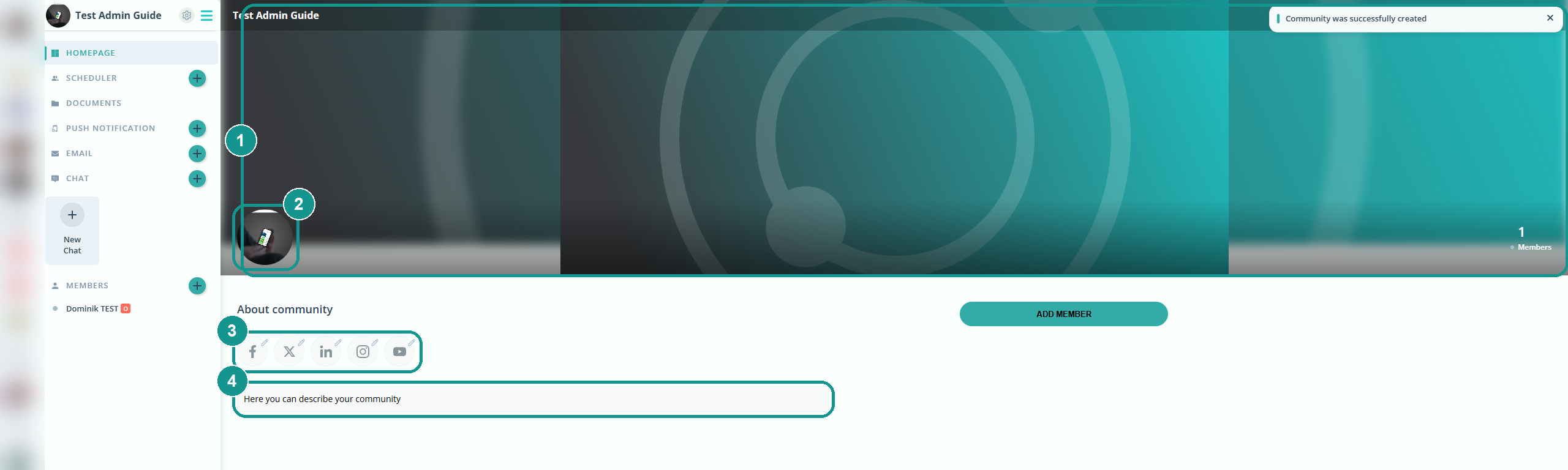
They are how your members recognize you. Your logo shows up in every push notification and every email from Gumb, so members see at a glance which community a message comes from. This matters most for members who belong to several communities. On your homepage, they see the cover (1) with the logo (2) at the top, and your links (3) and description (4) below.
Which images work well, and which don't?
For the logo, use a square image. Gumb shows it as a circle. Pick a logo that is easy to read at a small size, since notifications show it as a small icon. The cover is a wide landscape image, e.g. a team photo or your clubhouse. A logo with lots of small text and blurry or dark photos work less well. The cover can be up to 20 MB, the logo up to 5 MB.
What goes in the description?
Everything new members want to know first. If you have your own website, just copy the introduction from there.
- Who you are: two or three sentences about your community.
- Where and when you meet: location, practice or rehearsal times.
- Who to ask: a contact person for new members.
- Important links: e.g. "Here is our privacy policy", your bylaws, the annual program or the sign-up form.
You can add sections to the description and link directly to files in your documents. More: Store Files & Documents 📂
Which links should I add?
Your website and every social media channel you keep up to date. The icons appear on your homepage, and your members reach your channels with one click. If you have more than one website, e.g. one for the club and one for a tournament, add them with ➕.