
For Admins
Storing files and documents 📂
Files where they are actually needed
Gumb has three places for files. The rule of thumb is simple: if a file belongs to a specific occasion, attach it to the event. Anything permanent goes into Documents in the left sidebar.
The most important place: on the event itself
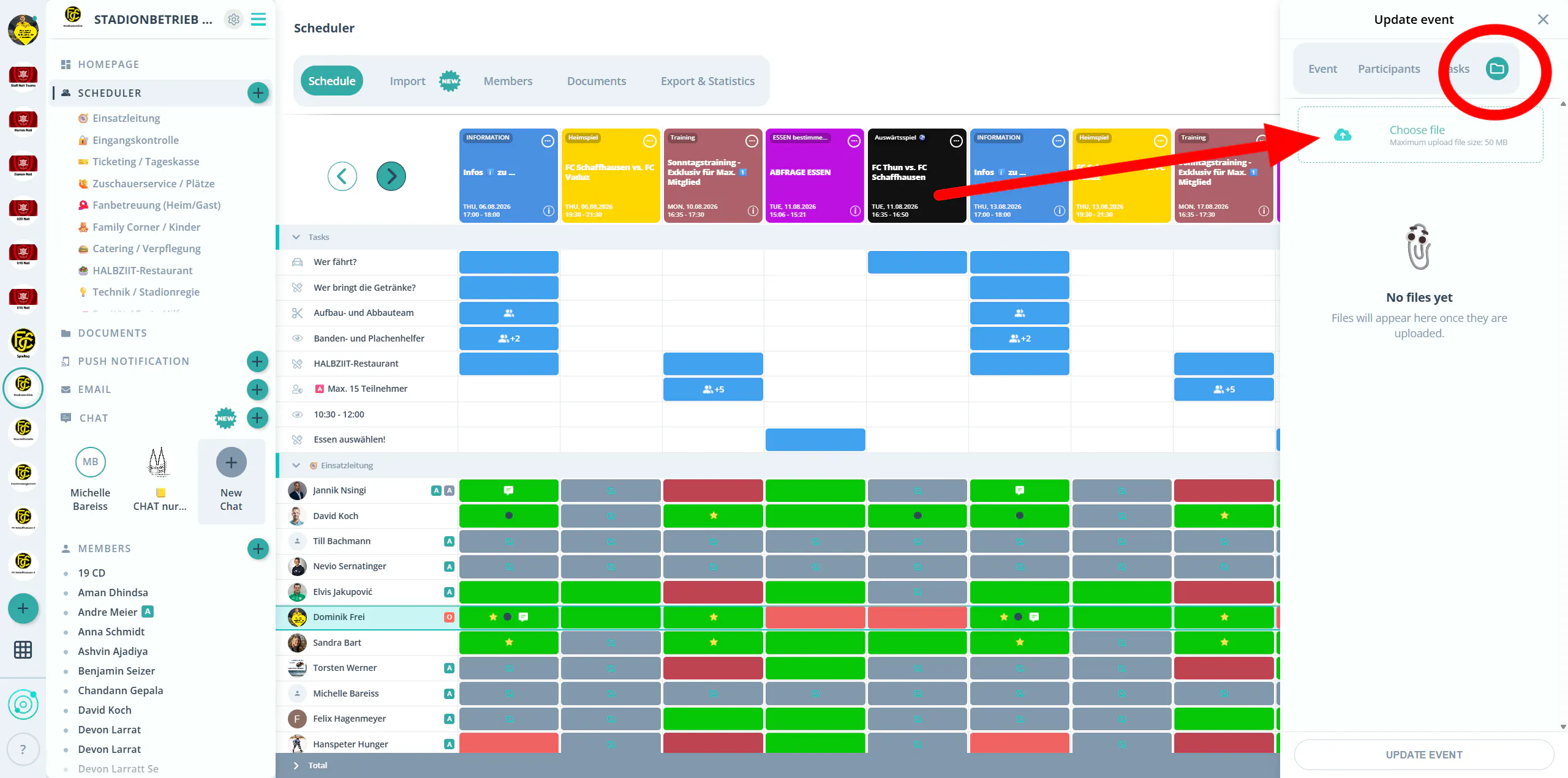
Sheet music with the performance, the agenda with the meeting, the rulebook with the tournament. Your members open the event anyway when they accept or decline - and find the material right there, without going anywhere else. That saves you follow-up questions and everyone the search through their inbox.
Open the event, switch to the folder tab in the "Update event" panel and choose your file. Group leaders can do exactly the same on their own group events.
General documents
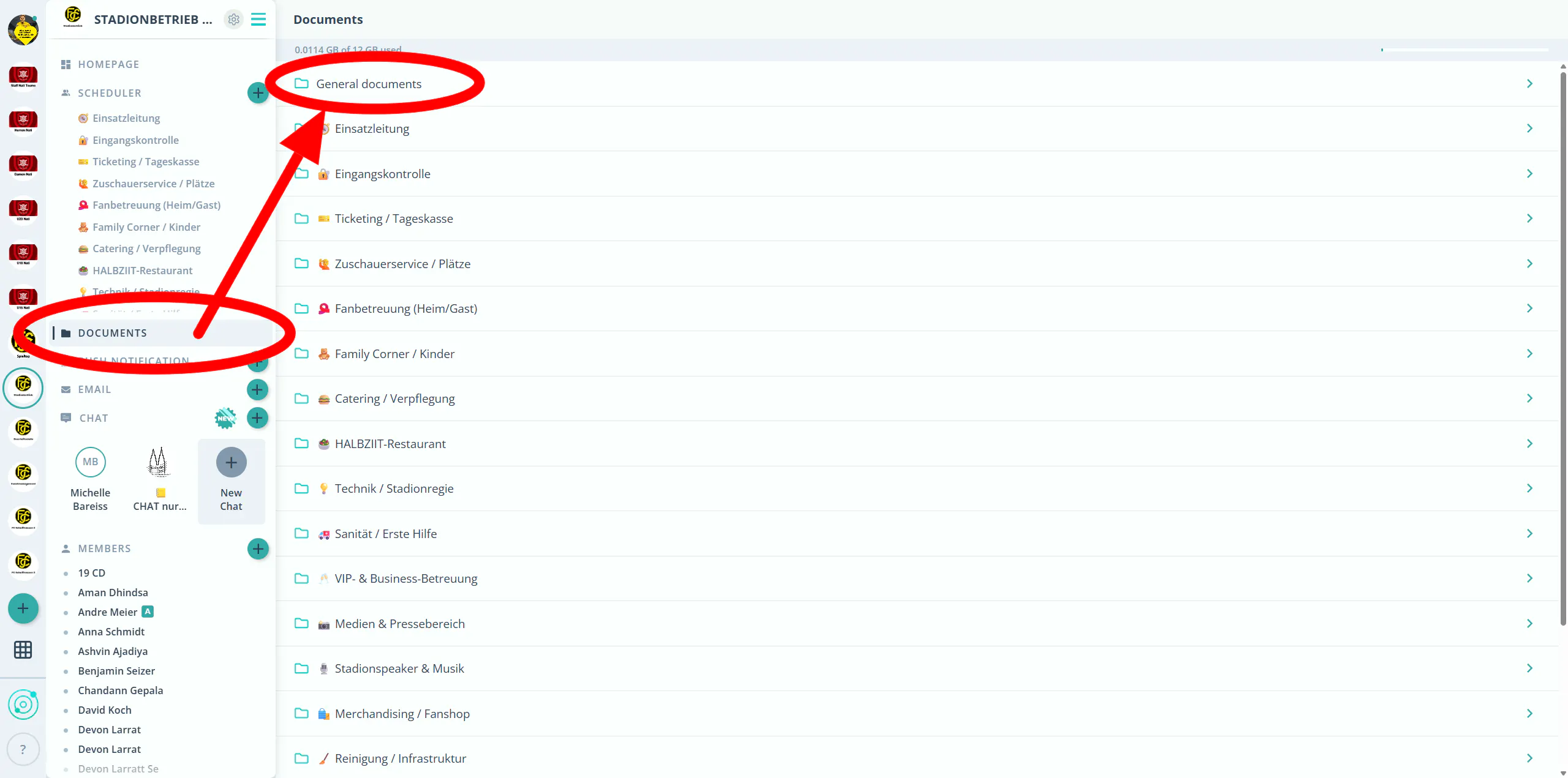
Whatever does not belong to a single occasion but applies all year round goes into Documents. The top folder is called "General documents" and is visible to every member of your community: bylaws, annual schedule, club rules, contact lists.
Owners and admins can upload and delete here.
Group folders
Every group you create in the scheduler automatically gets its own folder. Only members of that group can access it. You control visibility through group membership, without setting individual permissions.
Add a new group and its folder is there right away. Assign someone to a group and they will see the matching folder.
Alongside owners and admins, group leaders can upload and delete too - but only in their own group's folder.
Getting files to the right members
Storing is one thing, reaching the right people is another. Depending on the situation you have three routes.
- On the event you reach exactly the people invited, without sending anything. Whoever opens the event has the material in front of them. This is the most reliable route, because nothing can get lost in an inbox.
- Through the Email Feature 📧 you send files as an attachment to a selected group or to individual members. Useful when someone needs to read the document now, rather than discover it next time they open the event.
- In Chat you can create rooms with selected members, much like you know it from WhatsApp. This is the one place where members can attach files themselves - ideal for quick informal exchange.
Who can do what
Members can see and download every file they have access to. They can only upload in Chat - not in the folders and not on an event.
More on this under Roles and permissions 🛂.
On your phone
The Android and iOS apps look exactly like the web app. When a file is attached to an event, a small icon on the event shows it.
Storage and file size
Above the folder list, you can always see how much storage you have used. Your total allowance depends on your subscription.
A single file can be up to 50 MB.
Not available yet
Creating your own subfolders and setting permissions per folder. Both are on our Roadmap ⏳.
Tips for a tidy setup
Use descriptive file names with a date or occasion, such as "Concert2026_March_Florentiner.pdf". Search will find it instantly, even without subfolders.
Use your homepage as a signpost: in your community description, you can create sections and link directly to individual files. See Customize Your Home Page ✏️.
If you need deeply nested storage with fine-grained permissions for board records, for example, pair Gumb with a dedicated tool. The files your members need day to day still belong in Gumb - where they already are anyway.
Questions?
Reach out at support@gumb.app, use our contact form or visit our help center at gumb.app/en/support.