
For Admins
Chat & Chat Rooms: Team Messaging 💬
With chat in Gumb, you message individual members directly or talk things through in a chat room with a chosen group, like the board or the team for an event. Nobody has to share a phone number, and every message stays in your community. Chat is included in every plan.
What can chat do in Gumb?
- 1:1 chat You message a member directly, with no phone number and no private messenger.
- Chat rooms A fixed group of selected members, groups or all admins.
- Private Only the members inside a chat room can see it.
- All in one place Chats, events and documents stay in your community.
Where do I find chat?
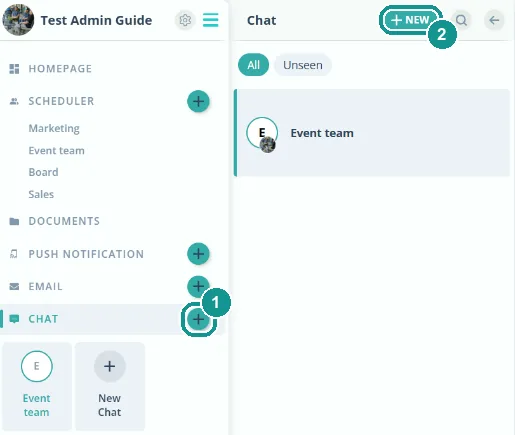
In the web app, click Chat in the left sidebar. You see all your chats and chat rooms there, and Unseen shows only those with new messages. Start a new chat with the plus next to Chat (1) or with New above the list (2).
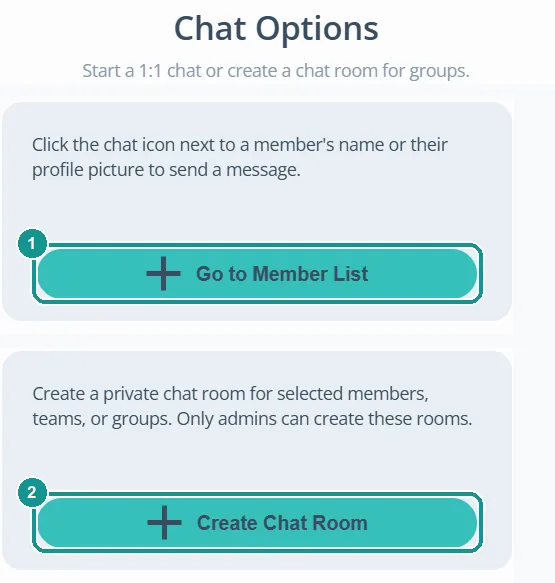
Gumb then asks what you want: a 1:1 chat with a member (1) or a chat room for a group (2).
How do I start a 1:1 chat?
- Click Members in the left sidebar, or Go to Member List in the chat options.
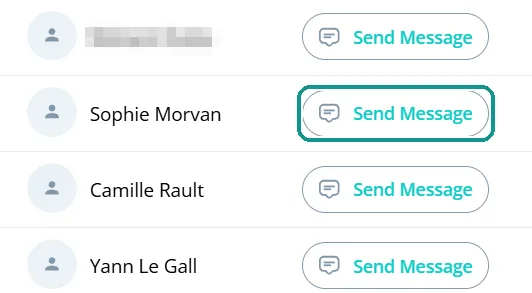
- Click Send Message next to the member. You can also open the chat from the member's profile picture.
- Type your message in the field at the bottom and click the arrow next to it.
How do I create a chat room?
- Click Create Chat Room in the chat options.
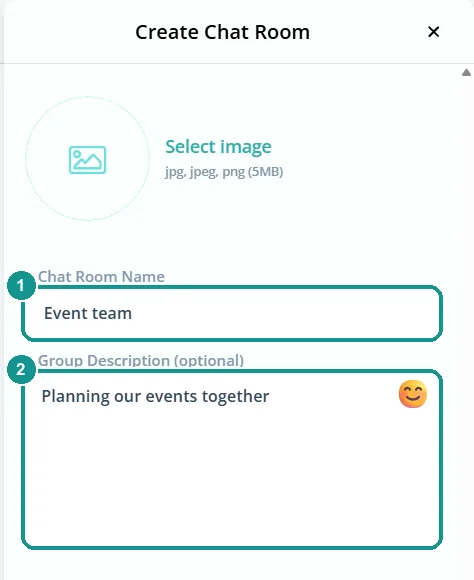
- Give the room a Chat Room Name (1) and, if you like, a Group Description (2), for example what it's for. A picture is optional. Click Next.
Then choose who joins the room:
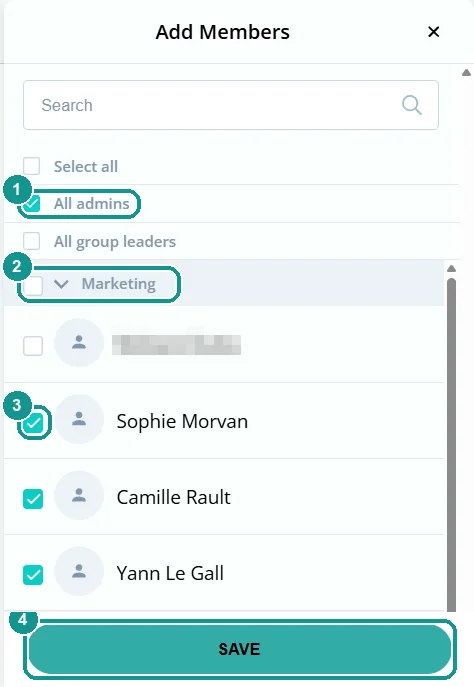
- Pick the members: all admins or all group leaders in one click (1), a whole group with the checkbox next to the group name (2), or individual people (3).
- Click Save (4). The chat room appears in the chat list of every selected member.
Who can create chat rooms?
Only admins create chat rooms. Every member can start a 1:1 chat. More: Roles and permissions 🛂
How do I change the members of a chat room?
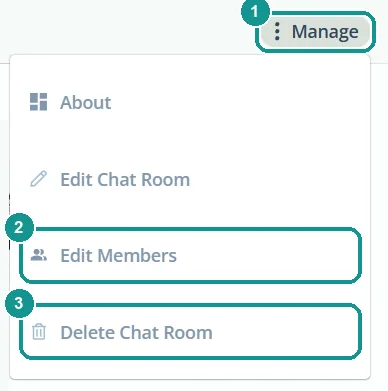
- Open the chat room and click Manage at the top right (1).
- Click Edit Members (2), check or uncheck people and click Save.
Under Manage, Edit Chat Room also changes the name, description and picture. About shows who is in the room.
How do I delete a chat room?
Open the chat room, click Manage and then Delete Chat Room (3). Gumb asks you to confirm before the room is deleted.
Chat, push message or email?
Chat fits ongoing conversations where everyone has a say. A push message 📢 puts a short update on the phone right away, even when the app is closed. An email 📧 fits longer updates with attachments and members without the app.