
Tasks in the scheduler
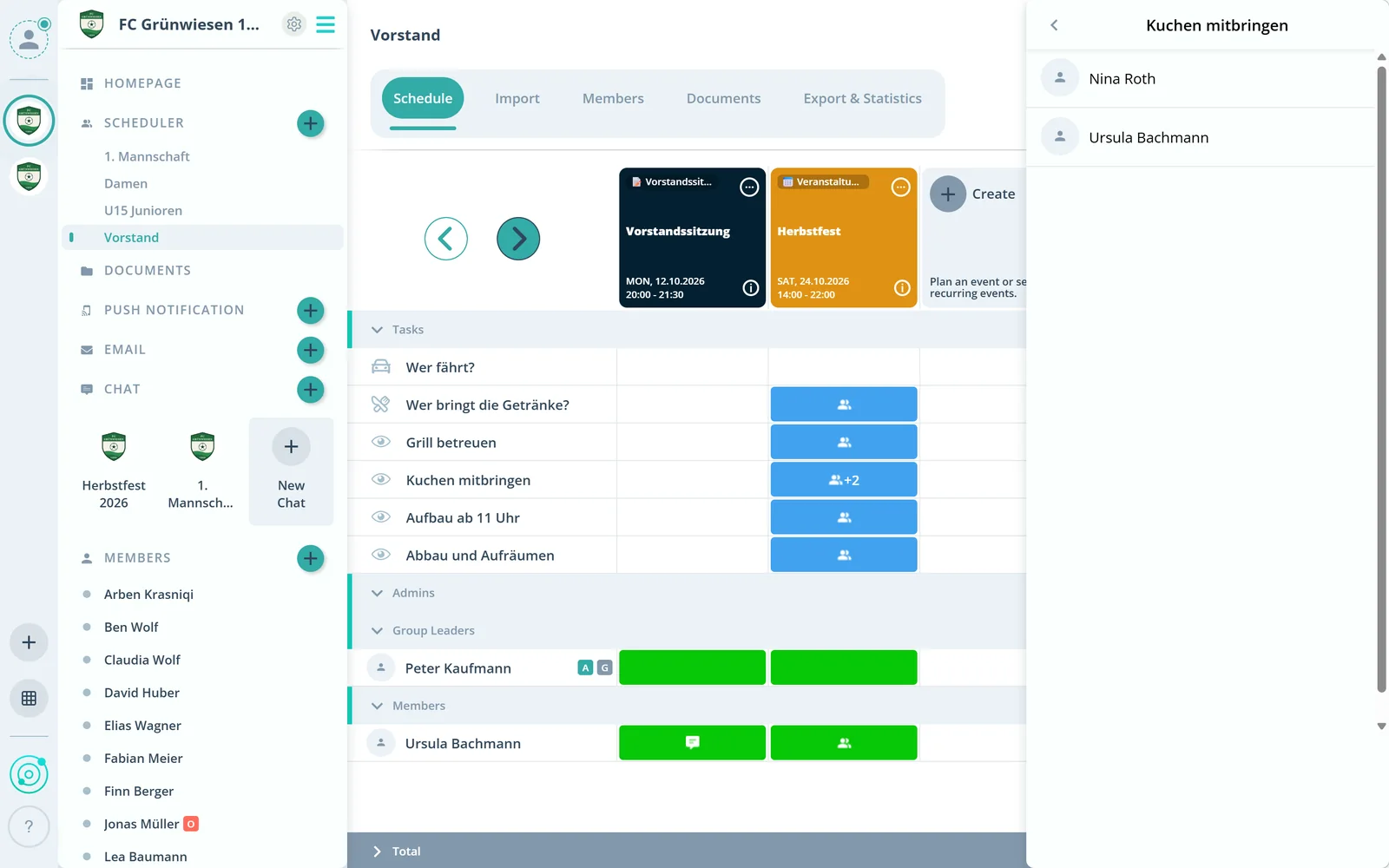
Below the events are the tasks, such as who washes the jerseys, who brings the drinks or who drives.
Feature: Tasks & Documents
Tasks such as helpers, equipment or rides sit right on the event. Members sign up themselves, and the documents are right next to them.



In short
In Gumb, tasks such as helpers, equipment or rides sit right on the event. Members sign up themselves or are assigned, like on a volunteer sign-up sheet. Documents live on the event, under General documents for everyone or in group folders that only that group can see.
Real screens from the app, explained step by step.
Below the events are the tasks, such as who washes the jerseys, who brings the drinks or who drives.
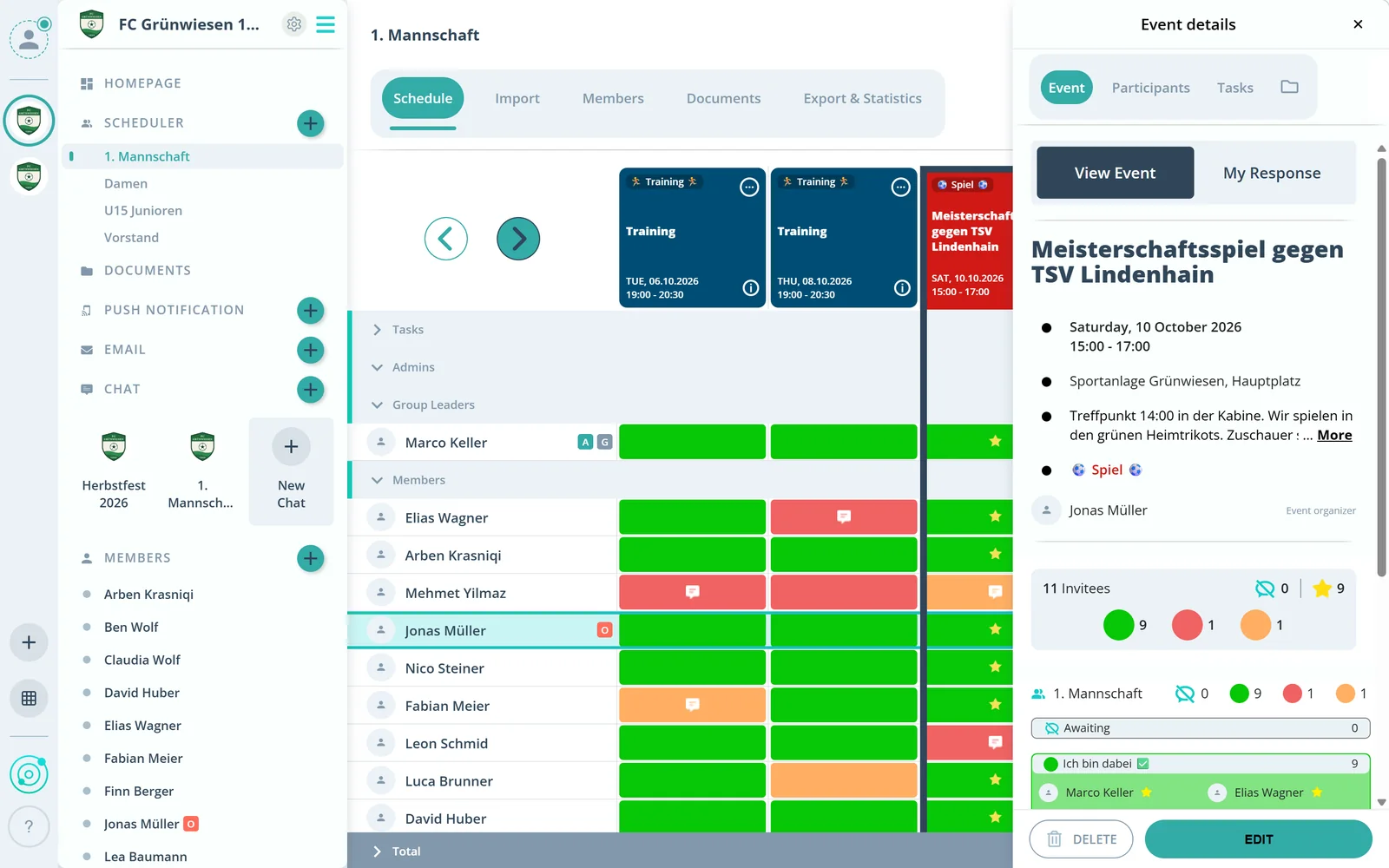
Every event has its own tabs for tasks and files. Group leaders attach files to their own group events themselves.
What else tasks and documents in Gumb can do.
Members put themselves down like on a sign-up sheet, or you assign tasks directly.
A personal note per event, such as “Set-up from 2 pm, south entrance”.
Recurring details such as “Meeting point field A” can be set up as a task, too.
Sheet music, agenda or rules right where members respond.
Bylaws and the annual program visible to everyone. Owners and admins upload.
Each group has its own folder, visible only to its members.
In the community settings under “Tasks” you give the task a name and an icon. Then you activate it on the events where it is needed.
Yes. Members sign up in the scheduler or in their profile under “My events”. Admins can also assign tasks directly.
In three places: right on the event, under “General documents” for all members and in the group folders that only that group can see.
Up to 50 MB per file. How much storage you have in total depends on your subscription.
In the chat, yes. Owners, admins and group leaders upload to the folders and to events.
No. Members never pay. The club or organization pays for the subscription, and members use Gumb for free.
Try Gumb free for 2 months with the full feature set. No credit card, no automatic renewal.