
For Members
Respond to Events ✅
You answer every event yourself: you say yes, say no or leave it open, in the app or on a computer. You can change your answer until the registration deadline passes.
How do I say yes or no?
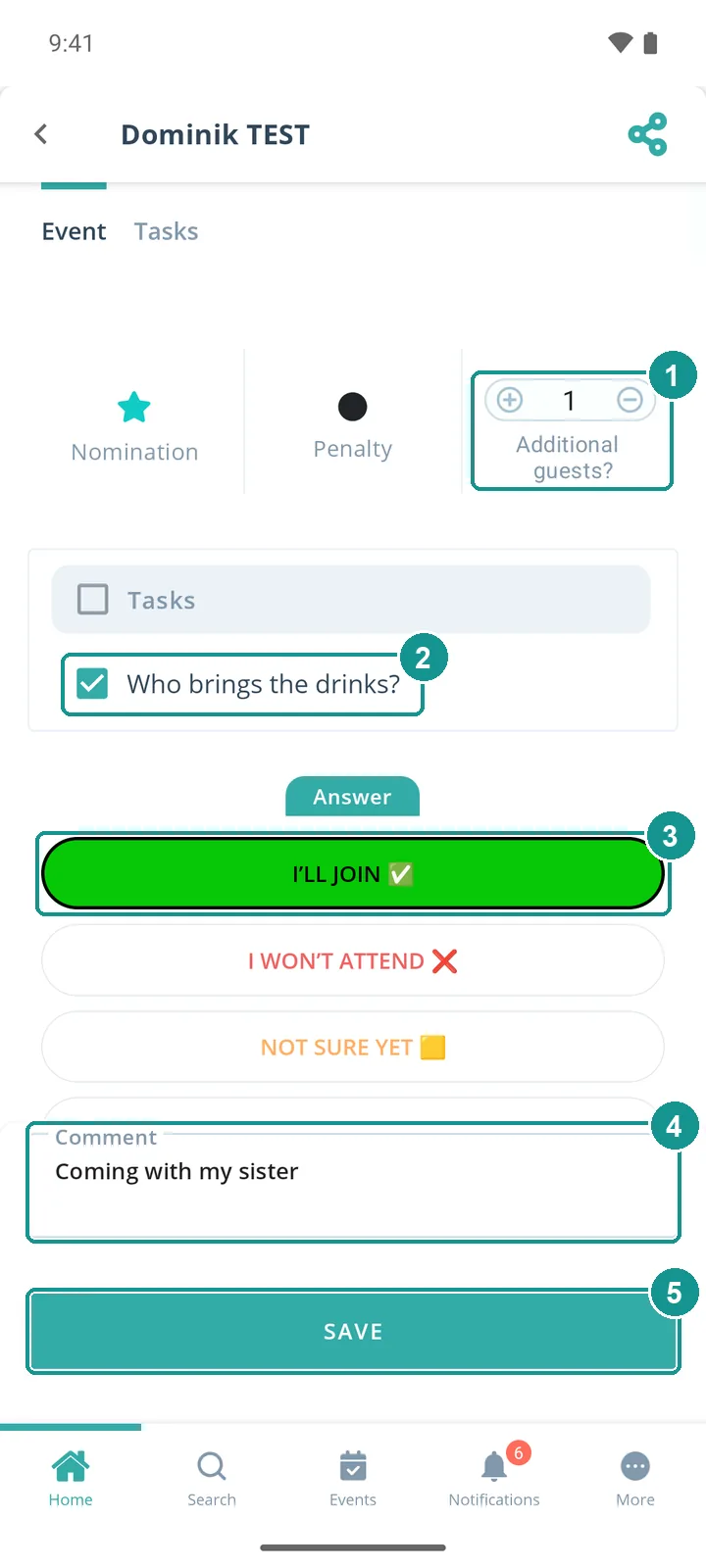
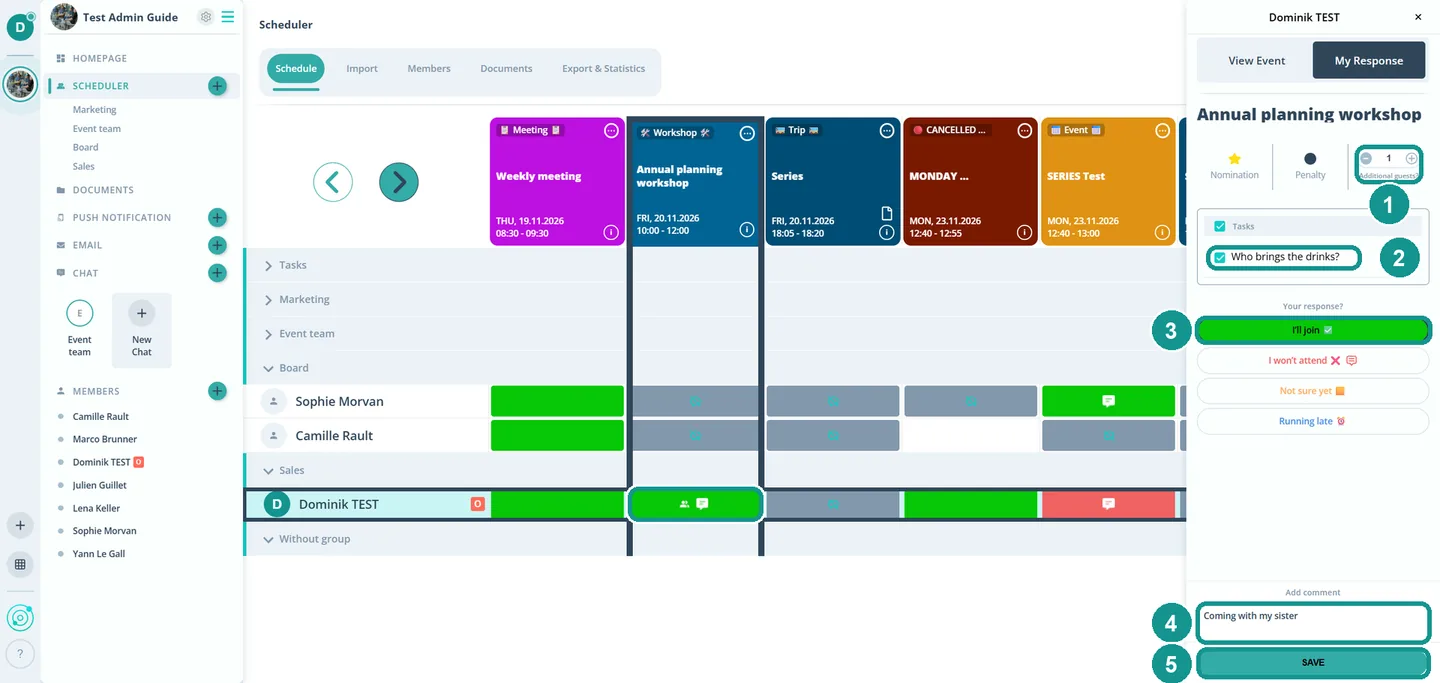
Tap or click the field in your row under the event in the Scheduler. Under My Response you pick your answer (3) and tap Save (5). In the same window you add guests (1), take on a task (2) and write a comment (4). In the app you pick the answer first.
It is quicker under Events in the app or My Appointments on a computer: there you answer right on the event. How Gumb Works 🚀 shows both ways.
How do I take on a task?
If an event has tasks, they are listed under My Response, for example "Who brings the drinks?". Tick the task (2), pick your answer and save. Gumb always saves a task together with an answer. In the Scheduler everyone sees who signed up. How admins set up tasks is explained in Create and Assign Tasks 📋.
Can I change my answer?
Yes, until the registration deadline passes. Open the event again, pick another answer and save. The deadline ends when the event starts, or earlier if your admins set it that way.
Why can't I answer anymore?
The registration deadline has passed or the event is over. After that, only admins and group leaders can change answers. Let them know if something changes at short notice.
Which answers are there?
Your admins decide which answers you see. Every new community starts with these three:
- I'll join You are coming.
- I won't attend You are not coming.
- Not sure yet You decide later.
Your admins can rename them and add their own, for example Running late. If a speech bubble shows next to an answer on a computer, that answer needs a comment.
How do I write a comment?
Type it under My Response in the Add comment field (4) and save. For example "Coming 15 minutes late" or why you can't make it. If your answer needs a comment, Gumb shows the note Comment needed.
How do I answer every event in a series?
For a recurring event, Gumb asks after you save which events your answer applies to. Pick This and following events (1). Then tap OK (2).
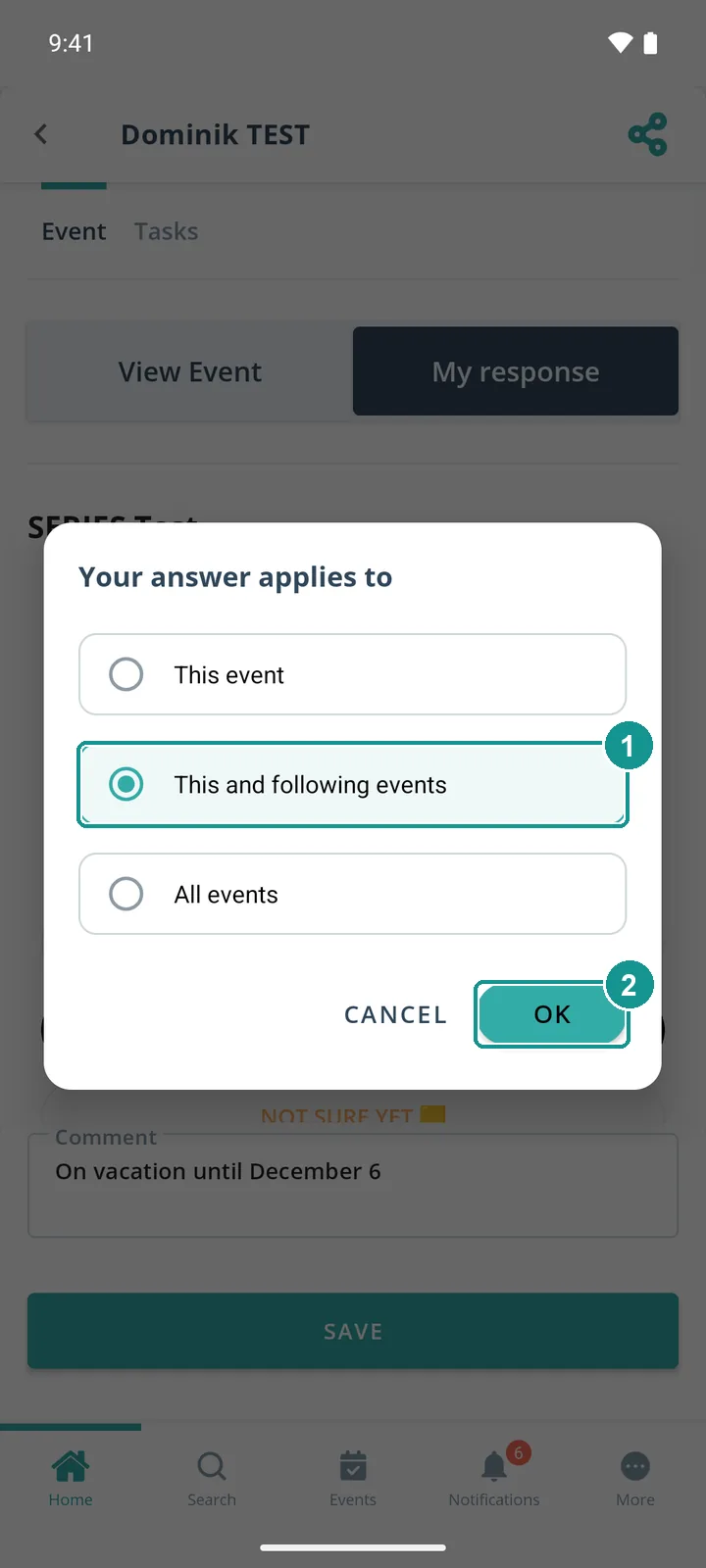
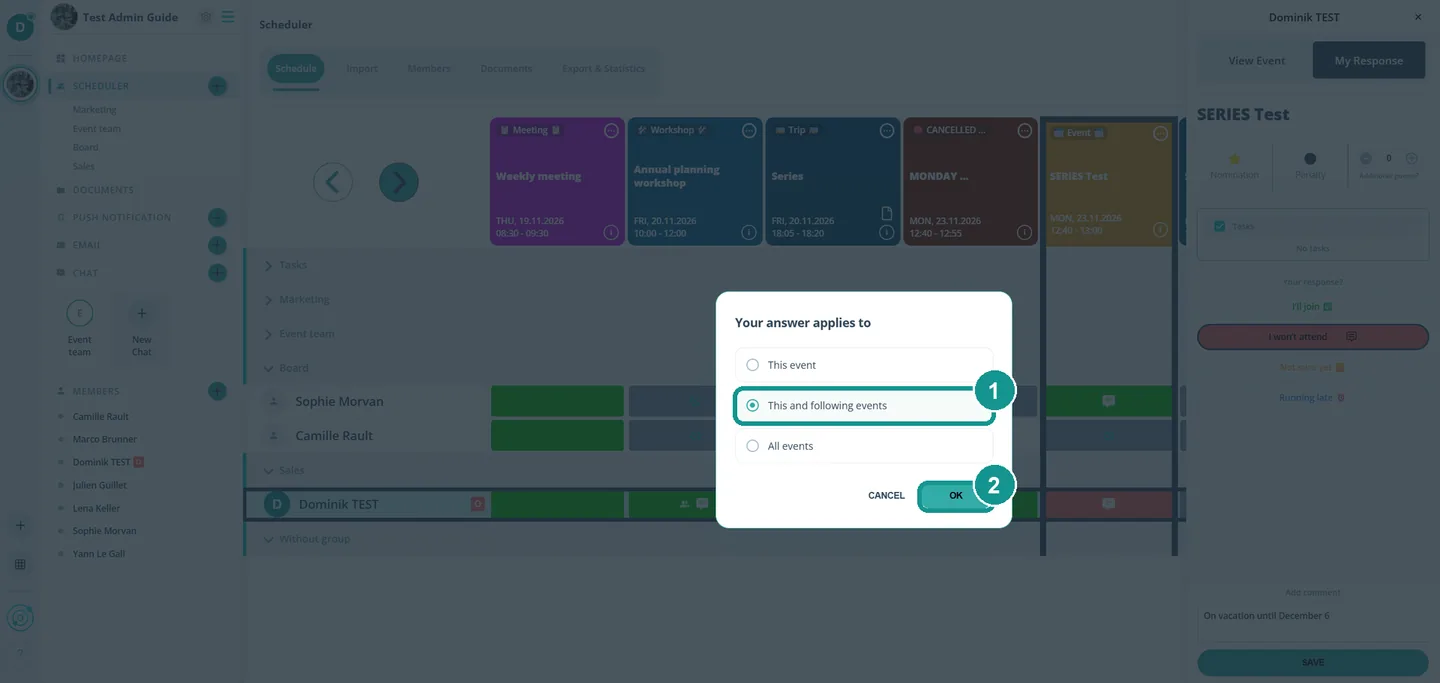
With the first option your answer applies only to this event, with All events to the whole series.
Who sees my answer and my comment?
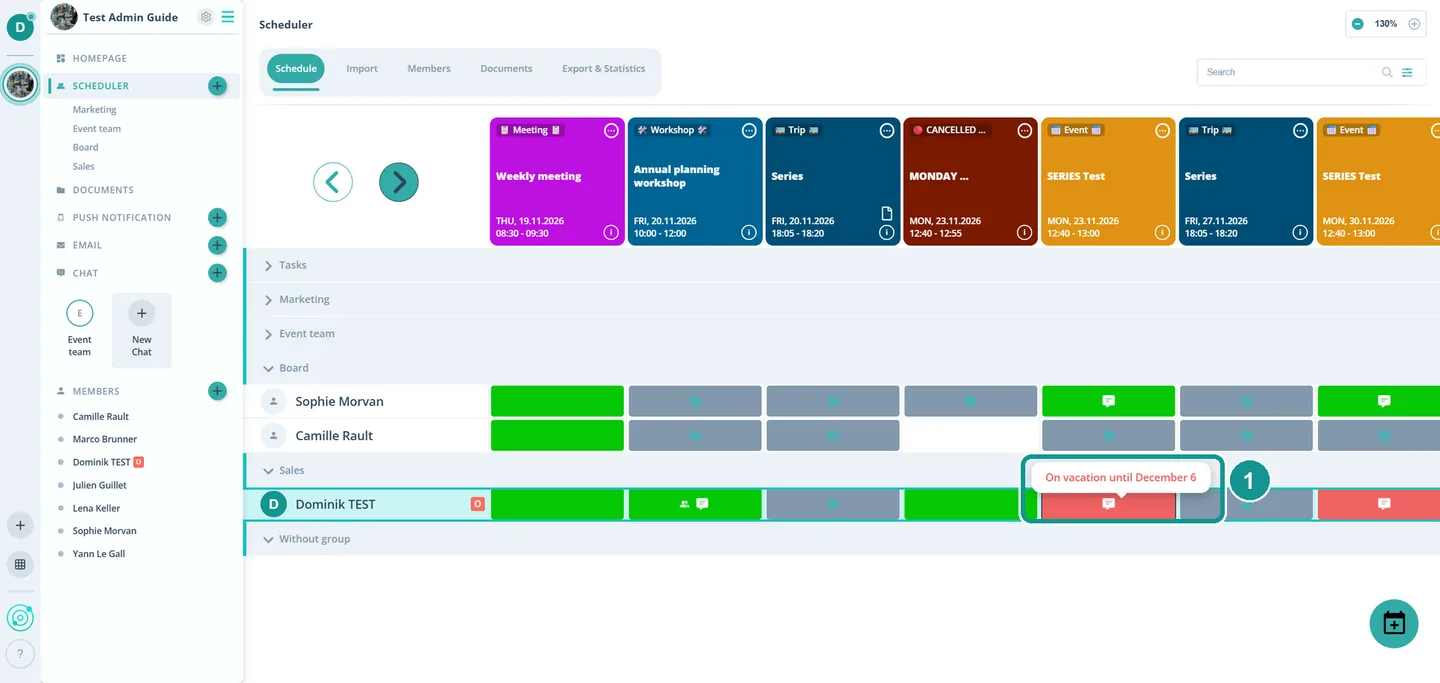
Everyone who sees the event in the Scheduler. Your answer shows as a color in your field, for example red for a no. A speech bubble in the field marks a comment. On a computer, anyone who moves the mouse over it can read it (1).
Why is there already an answer for me?
Your admins set a default answer for the event, for example a yes for everyone. If it fits, you don't need to do anything. Otherwise you change it like any other answer.
How do I bring guests?
Under My Response, use plus and minus at Additional guests? to set how many people you bring (1), for example your partner or siblings. Guests don't need their own account. Pick your answer and save, in the app the answer first. The Scheduler then shows, for example, +1 in your field.
How do I say no for my vacation?
With a series answer. There is no separate absence feature.
- Open the first event during your vacation.
- Pick your no and write in the comment until when you are away, for example "On vacation until December 6".
- Tap Save and pick This and following events.
- After your vacation, answer the first event with a yes and This and following events again.
Events outside a series you answer one by one, fastest under Events in the app or My Appointments on a computer.