
FAQs
How can I assign tasks to certain members as an admin?
Most administrators are familiar with the process of creating tasks, but how do I assign specific tasks?
.
Here's how task assignment works:
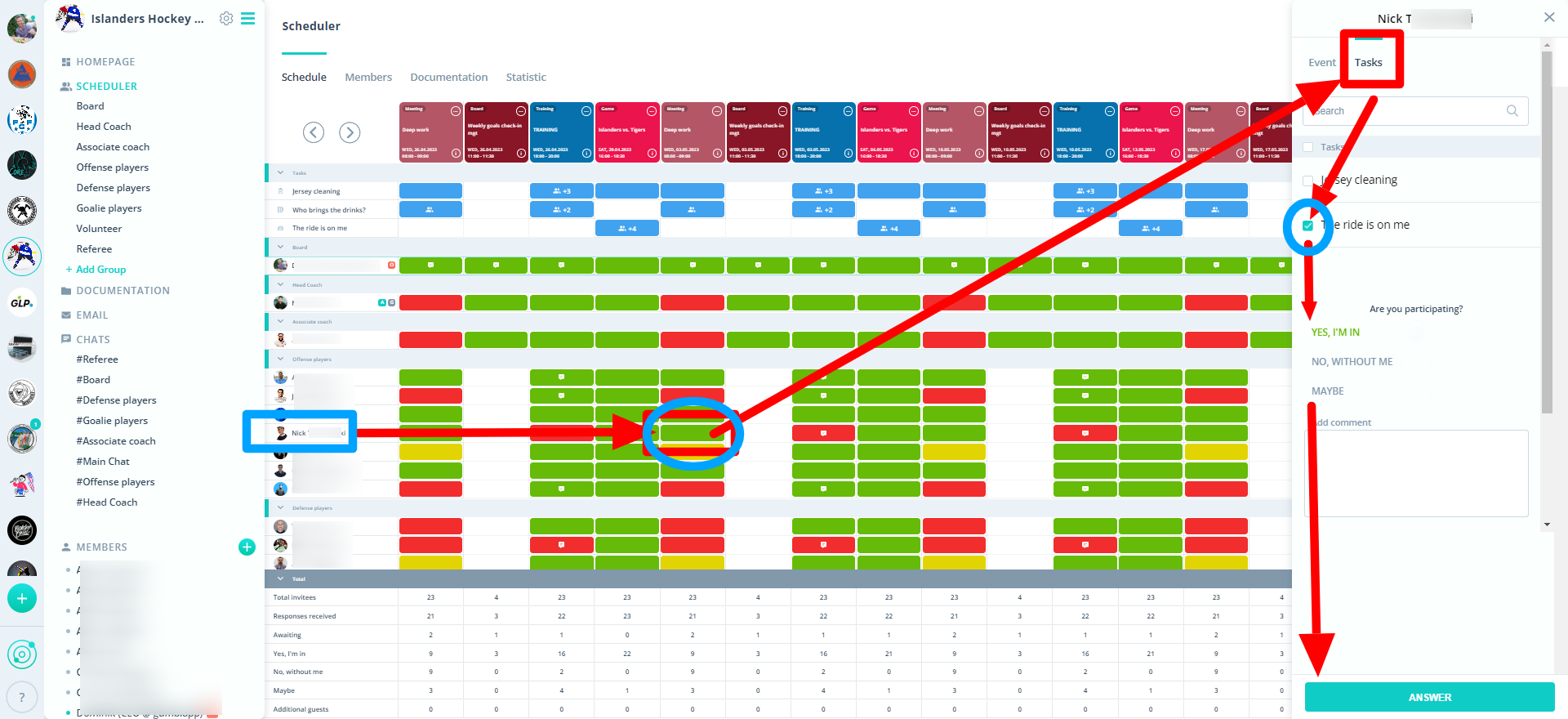
Admins & group leaders can click on the answer field of the person (i.e., on a user's "Yes, I'm coming"), and then enter the tasks there and set the checkmark for this user.
So, you always have to click on the member's answer cell - then check the "Tasks" box at the top right of the appointment. As soon as the checkmark is set and saved (click answers below), the tasks are accepted/assigned.
It then looks like this:
.
.
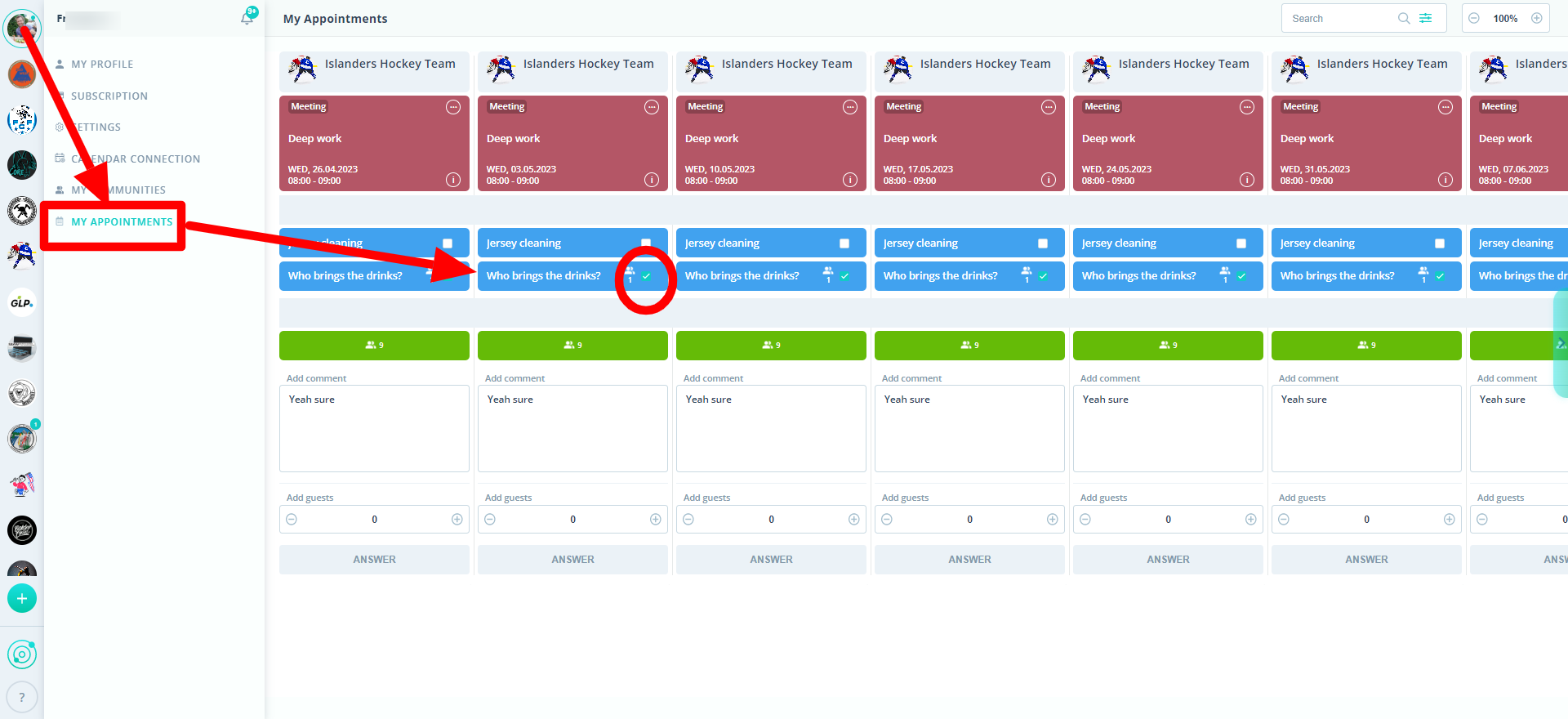
The member or the user himself can choose the same way, or alternatively via his profile and accept the assignment there, as seen in the next picture. In any case, the member will see directly when it is assigned.
.
.
.
The contact form can be used if you need further assistance or have additional questions.