
FAQs
What do the star ⭐ and penalty ⚫ mean?
In Gumb, administrators use two markings: the star ⭐ stands for a nomination (a call-up for an event), and the penalty dot ⚫ records a missed attendance at a past event. Both markings are visible to the members concerned.
The star ⭐: nomination
A star ⭐ is a fixed marking set by an administrator and can be read as a "call-up for this event". It is visible to the member.
In a sports club: a star assigned by the administrator shows that the player is in the line-up, squad or formation.
In a company: when creating the shift plan, supervisors check availability and mark fixed assignments with a star. This lets you both review availability and lock in confirmed assignments for employees.
How to set a star as an admin:
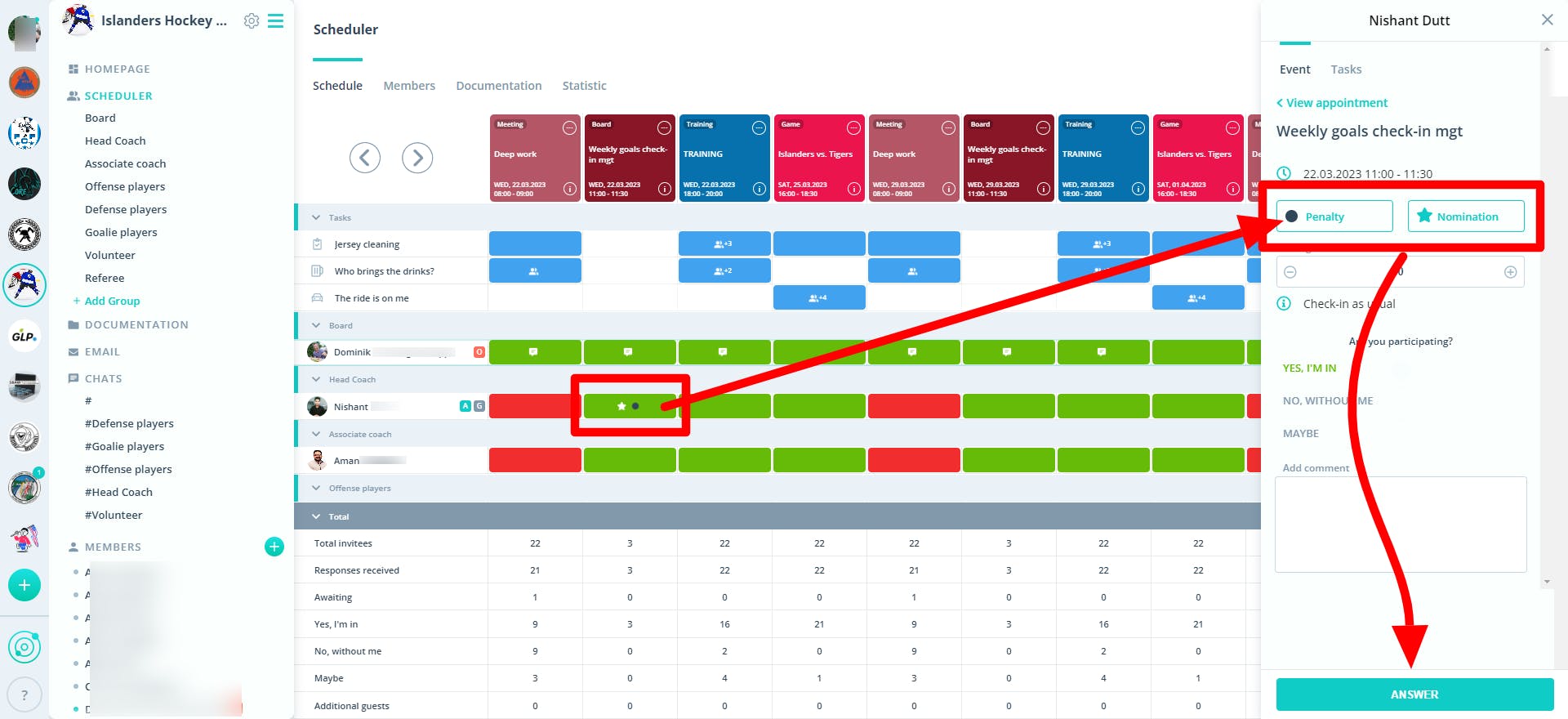
- In the scheduler, click the member's response cell for the relevant event - the event panel opens on the right.
- At the top right, activate the "Nomination" star (you'll find "Penalty" right next to it).
- Click "Save".
[Placeholder screenshot: event panel with the "Nomination" (star) and "Penalty" buttons to activate - image to be added manually.]
The penalty dot ⚫
The black penalty dot ⚫ records actual attendance at past events and can also serve as a "penalty point". If someone missed an event, mark their response with this dot. This marking is visible to the member too.
How to assign a penalty dot as an admin:
- Click the member's response cell for the past event - the same event panel opens on the right.
- At the top right, activate "Penalty".
- Click "Save".
Tip: at the end of a season, team leaders and board members use the statistics page to review the number of ⭐ and ⚫ per member.
Keep your nominated squad informed via mobile push
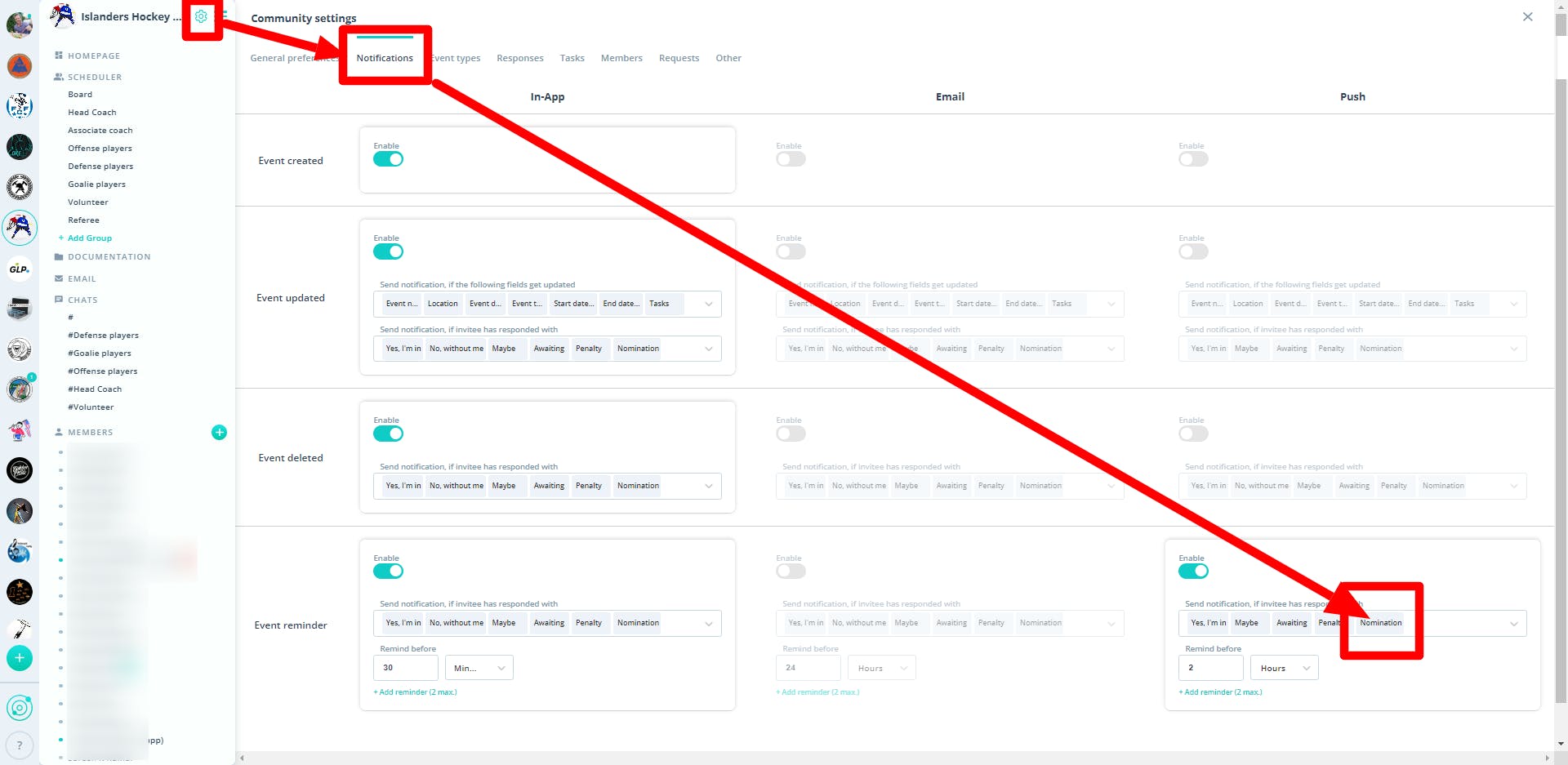
You can set things up so that only the nominated members (those marked with a star ⭐) receive a push notification. That way the right people stay informed and can tap the push to view and manage all event details.
Here's how to enable it:
- Open the community settings ⚙ next to your community name.
- Go to the "Notifications" tab.
- Under Event Reminders, enable "Nomination". An activated field is grayed out.
Tip: mark substitutes with "Tasks"
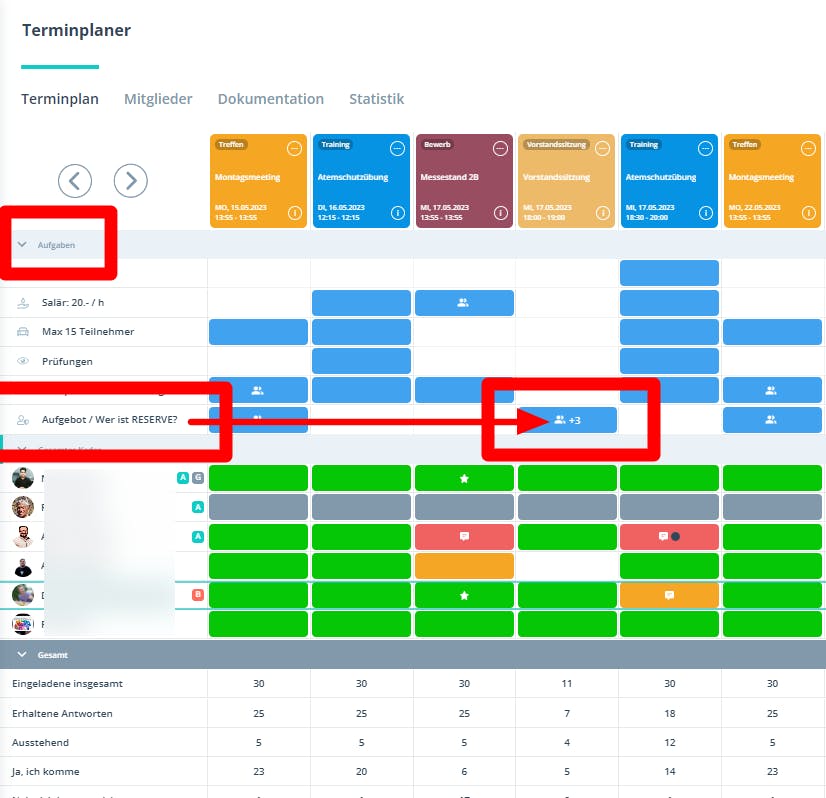
Need substitutes alongside your fixed squad? Use either the penalty dot as a marker or - more clearly - the "Tasks" feature. Here's how:
- Open the community settings ⚙ and select the "Tasks" tab.
- Add an option such as "Substitute".
- Mark the relevant player with this "Task".
This way both you and the member can see who is nominated and who is the substitute.
Step-by-step guide here: Create tasks
Still have questions?
Email us at support@gumb.app, use our contact form, or visit the help center at gumb.app/support.