



Hi, how can we help?
Articles
Upload/Import Events ⬆️
Upload/Import Events – How it Works!
With Gumb, you can easily import or upload your event list using a CSV or Excel file. This saves you time and helps you avoid mistakes from manual entry.
Step 1: Download Template or Prepare Your Own File
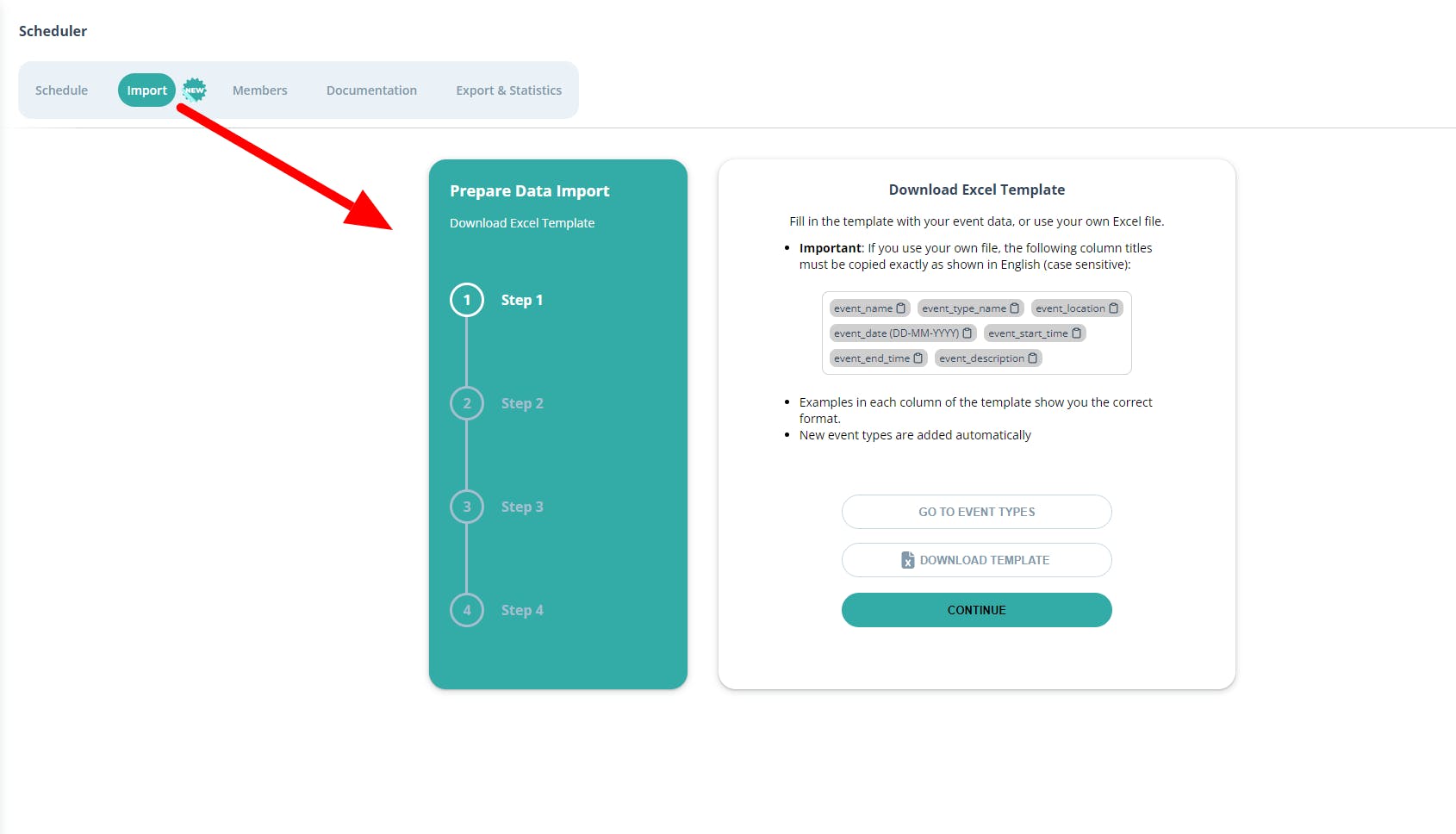
- Open the Gumb web app and go to "Import" in the scheduler.
- Either: Download the Excel template.
- Or: Prepare your own Excel file. Make sure it's in the correct format: Column headers: Must be exactly as shown in English (copy and paste them from here for accuracy):
- event_name, event_type_name, event_location, event_date (DD-MM-YYYY), event_start_time, event_end_time, event_description
Step 2: Prepare Data (Only if Using the Template)
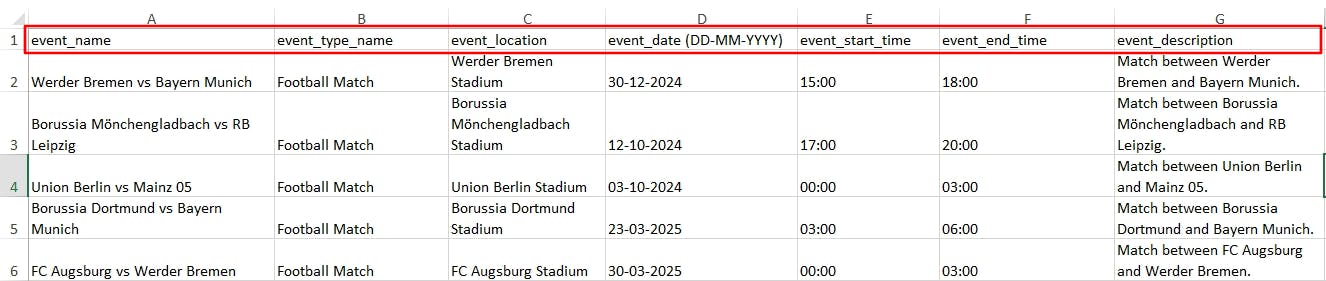
- Open the template in Excel.
- Fill in the template with your event details. Follow the format shown in the examples for each column.
- New event types will be added automatically.
Step 3: Save CSV and Upload File
- Save the completed Excel file as a CSV file (under "File" → "Save As").
- Click "Choose File" and select the saved CSV file.
- Click "Upload."
Step 4: Review Data
- Review the preview of your events.
- Adjust the activated members for each event as needed.
- Click "Confirm & Import."
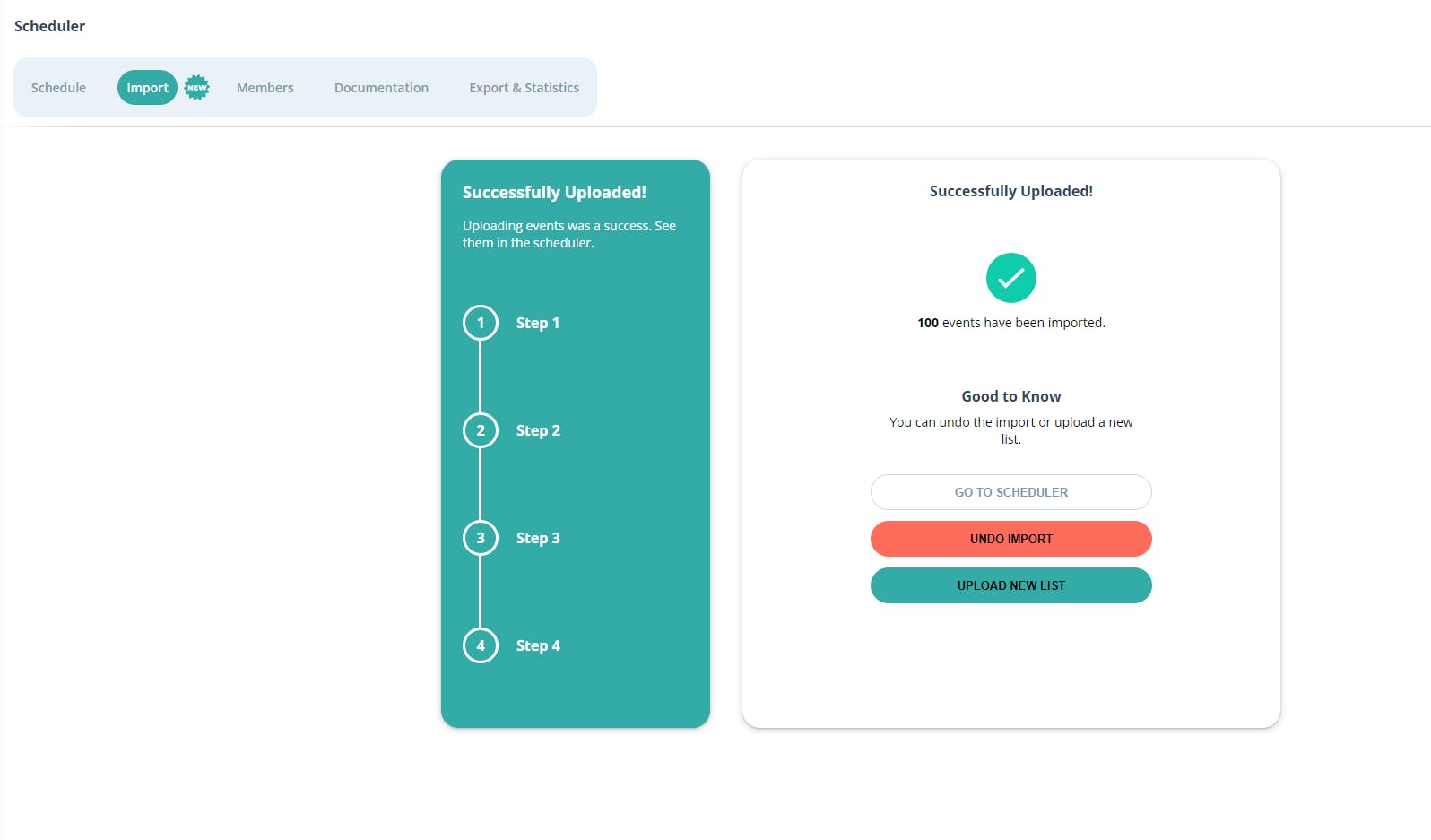
You're Done!
Your events have been successfully imported and are now visible in the scheduler.
Important Notes:
- You can undo the import at any time.
- Uploading a new list will not delete the old list. Delete unwanted events manually beforehand.
- If you have any questions or require assistance, please contact us through our contact form.
Questions? Our support team is happy to help. ⇾ Contact Form