


Hi, how can we help?
Articles
Google Calendar not syncing❓
If your events aren’t showing in Gumb, it usually means the sync permission wasn’t granted. Just follow these two steps:
1. Quick Fix: Reconnect Your Calendar
- In Gumb, go to Settings → Calendar.
- Click Disconnect next to Google Calendar.
- Click Connect, choose your Google account, and allow Gumb to access your calendar.
- Wait 2–5 minutes (or reload your Google Calendar) for the first sync to complete.
Need more details? See our full guide on Connecting Google Calendar.
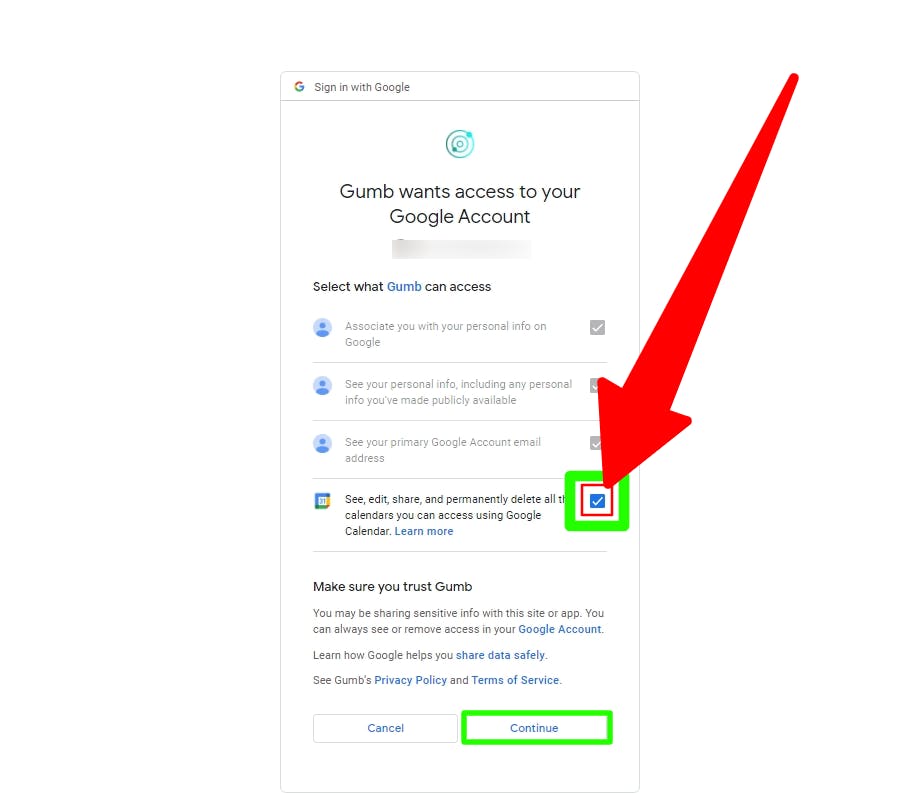
2. Full Reset: Remove & Reauthorize
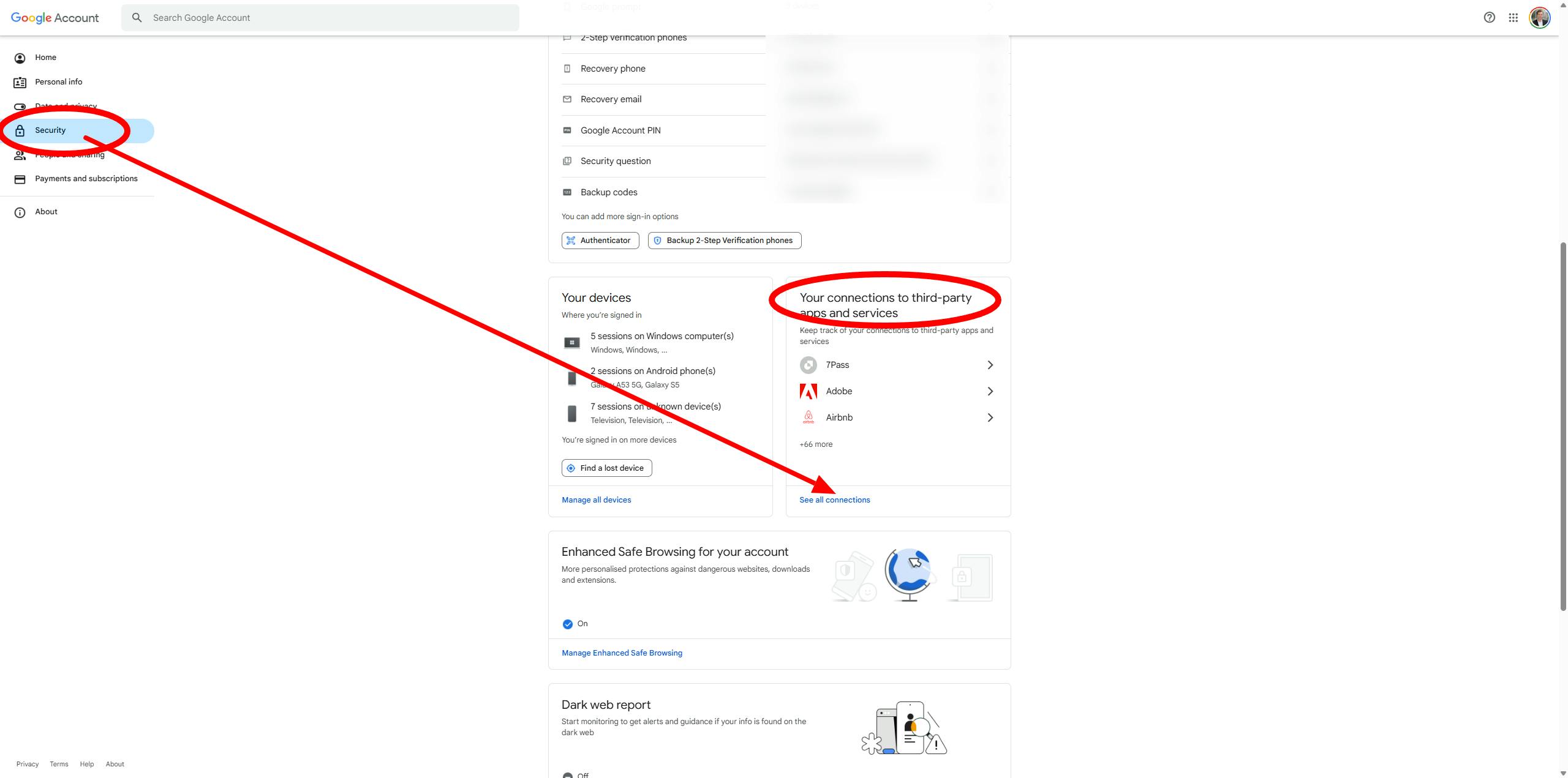
- Open your Google Account’s security page:
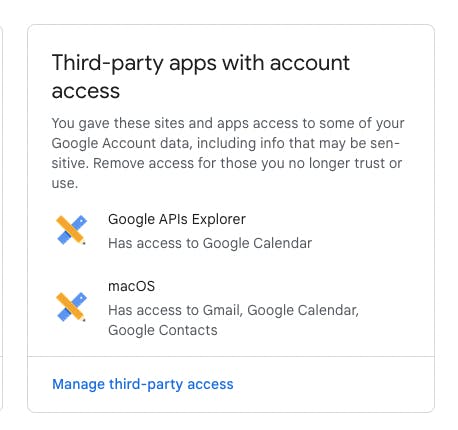
https://myaccount.google.com/security - Under Third-party apps with account access, find Gumb and click Remove Access.
- Return to Gumb and repeat Step 1 – Quick Fix to reconnect and grant permissions again.
Still stuck? Reach out via our contact form.